
Using the Prima.Law Chrome Extension
The Prima.Law Chrome Extension allows you to send form data directly from Prima.Law to government websites for e-filing and data entry.
Browser requirements
- Works only with Google Chrome and Chromium-based browsers (Edge, Brave).
- Not compatible with non-Chromium browsers.
For full functionality, Google Chrome is recommended.
Installing the extension
Option 1: Chrome Web Store
- Open Google Chrome.
- Go to the Chrome Web Store.
- Search for Prima.Law Chrome Extension.
- Click Add to Chrome.
- Confirm by clicking Add Extension.
Option 2: Google search
- Search “Prima.Law Chrome Extension”.
- Open the Chrome Web Store result and install.
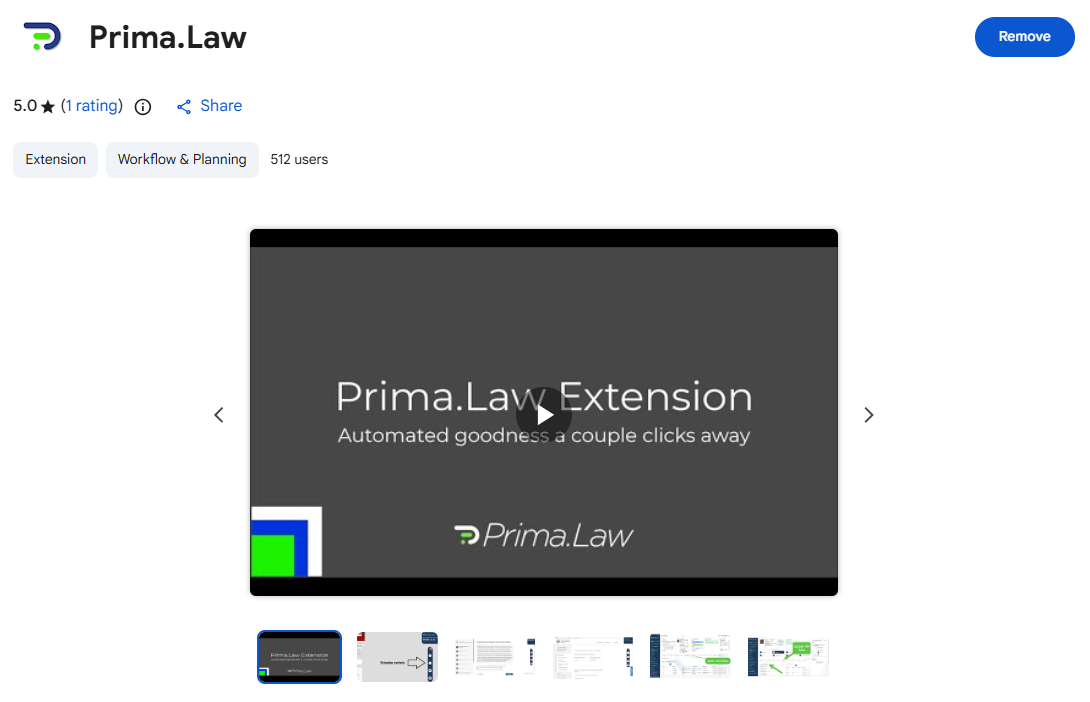
What can the extension do?
When installed and running, the extension allows you to:
- Autofill DS-160 and DS-260 forms on CEAC.
- Autofill forms on USCIS and DOL websites.
- Pull I-94 and travel history data from CBP websites.
- Import immigration court data from EOIR.
- Update USCIS receipt information.
- E-file / Online file forms.
Using the extension for CEAC forms (DS-160 / DS-260) (E-filing / Online Filing)
- Create the DS-160 or DS-260 form in Prima.Law.
- Complete the form and confirm all required fields are filled.
- Click Send to Extension from the forms list.
- You will be redirected to the CEAC website.
- Enter required case details (case number, invoice number).
- Complete CAPTCHA verification.
- The extension will populate the form fields with your data.
Important
- “Send to Extension” only transfers text data.
- You must still complete the remaining steps on the government website to submit the form.
Using the extension for USCIS forms (E-filing / Online Filing)
USCIS forms follow the same workflow as CEAC forms. The extension does not create or complete filings on its own. It transfers data from your Prima.Law form into the USCIS web form.
Before using the extension
- Create the appropriate case in Prima.Law.
- Add the USCIS form to the case from the Forms tab.
- Assign all required roles to the form (applicant, petitioner, beneficiary, preparer, etc.).
- Populate the form using one of the following methods:
- Autofill from existing contact data
- Generate and send a Smart Interview, then import responses
- Manually complete any remaining fields
- Open the form in the editor and confirm all required information is present and accurate.
Sending the form to USCIS (E-filing / Online Filing)
- Click Send to Extension from the forms list.
- You will be redirected to the USCIS website.
- Log in to your USCIS account if you are not already logged in.
- Enter any required case or receipt information.
- Click the play button in the extension to begin the autofill process.
Important
All data sent to USCIS comes directly from the Prima.Law form. If information is missing or incorrect in Prima.Law, it will be missing or incorrect on the USCIS website.
Using the extension for Department of Labor (DOL) forms (E-filing / Online Filing)
Department of Labor (DOL) forms use the same extension workflow as CEAC and USCIS.
Before using the extension
- Create the appropriate case in Prima.Law.
- Add the relevant DOL form to the case.
- Assign roles before attempting autofill.
- Populate the form using Autofill, Smart Interviews, or manual entry.
- Review all data in the form editor to ensure completeness and accuracy.
Sending the form to DOL (E-filing / Online Filing)
- Click Send to Extension from the forms list.
- You will be redirected to the Department of Labor website.
- Log in to the appropriate DOL system if required.
- Enter any required identifiers to begin the form.
- Click the play button in the extension to initiate autofill.
Important
The extension exports only the data present in the Prima.Law form. Always confirm accuracy before sending data to DOL systems.
Common mistakes to avoid
- Sending forms before assigning roles.
- Sending forms with incomplete data.
- Using a non-Chromium browser.
- Not logging into USCIS or DOL websites before starting autofill.
- Expecting the extension to complete submission automatically.
Best practices
- Always assign roles before autofilling forms.
- Use Smart Interviews whenever possible to reduce manual entry.
- Review forms in the editor before sending to the extension.
- Log into government websites before starting the autofill process.
- Use Autofill and Reverse Autofill to maintain data consistency.
- Keep the extension updated.
List of Available Forms for E-filing / Online Filing using the Prima.Law Chrome Extension:
- I‑90
- I‑130
- I-130A
- I‑131A
- I‑134A
- I‑539
- I‑765
- I‑821
- I‑907
- N‑336
- N‑400
- N‑565
- N‑600
- AR‑11
- I‑912
- ETA‑9142C
- ETA‑9089
- ETA‑9141
- ETA‑9035
- ETA‑9142B
- ETA‑790A
- EOIR-42B
- I‑589
- I‑129