
Smart Interviews & Data Intake
Smart Interviews (This is Prima.Law's version of questionnaires) can be shared through:
- Client Portal
- Text message (SMS)
- Direct link (copy and share via any messaging app)
You are not limited to using the Client Portal. Choose the method that works best for your workflow and your client.
Step 1: Assign Roles Before Generating the Interview
Before generating a Smart Interview, you must assign the correct contacts to the roles on the form.
- Open the Case Page.
- Go to the Forms tab.
- Click on the form name (for example, I-129F or I-130).
- Assign the correct contact to each required role using the dropdown menus.
Important:
- Some forms require only one role.
- Some forms (like I-130, I-601A, EOIR-42B) require two roles (e.g., Petitioner and Beneficiary, or Applicant and Petitioner).
- IMPORTANT: All required roles must be assigned before generating the Smart Interview. (THIS IS A KEY STEP, IF ROLES ARE NOT ASSIGNED - EITHER THE MAIN ROLE OR ALL ROLES FOR SOME FORMS THAT REQUIRE THEM LIKE I-130 AND EOIR-42B - THEN THE SYSTEM WILL NOT ALLOW THE SMART INTERVIEW TO BE GENERATED)
Once roles are properly assigned, you are ready to generate the interview.

Step 2: Generate the Smart Interview
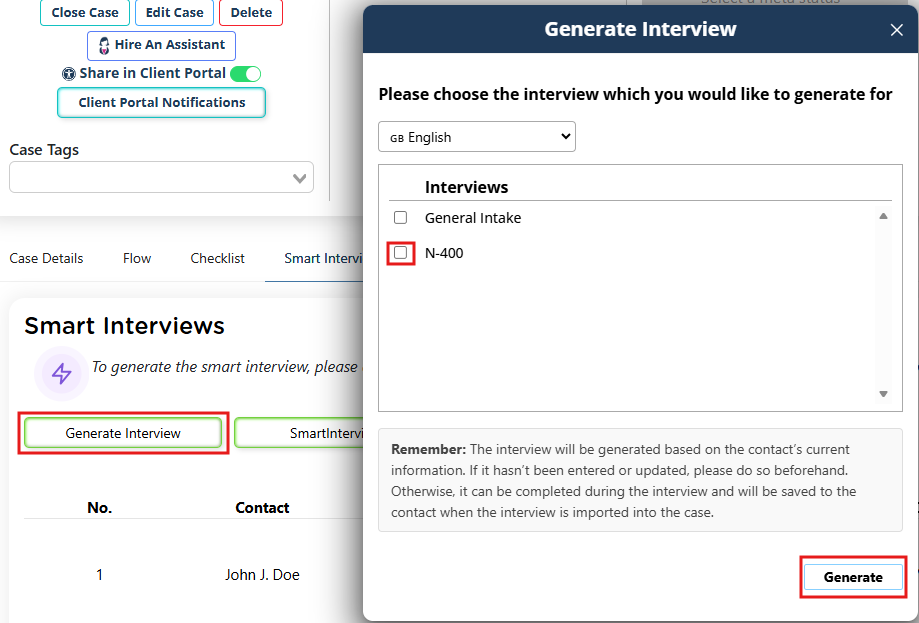
- Go to the Smart Interviews tab within the case.
- Click Generate Interview.
- Select the form (for example, I-129F).
- Click Generate.
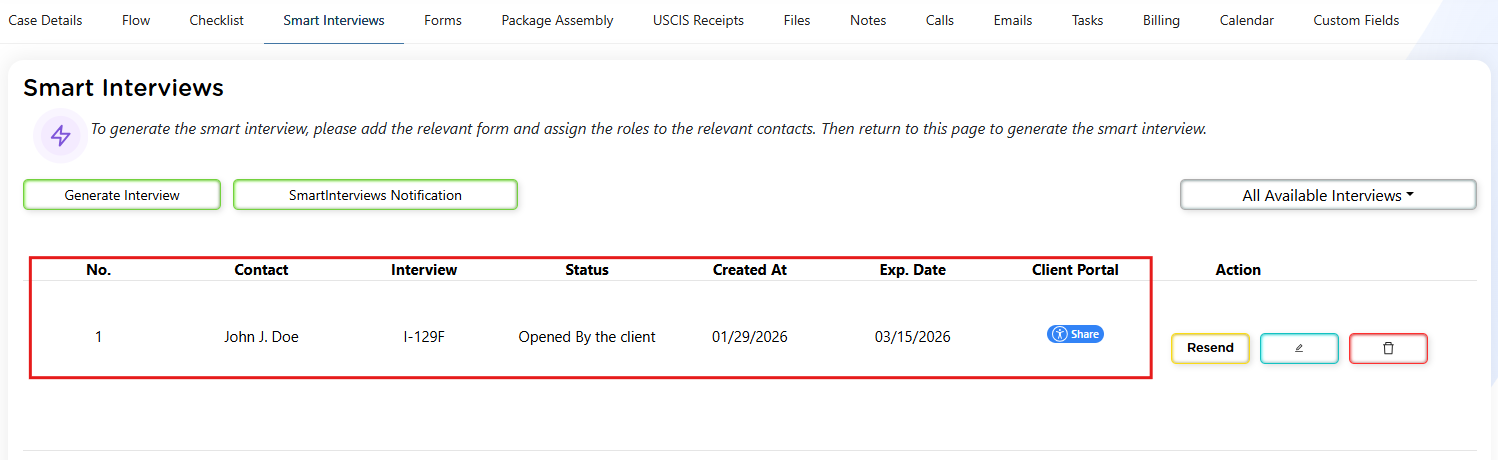
The Smart Interview will now appear in the Smart Interviews list.
Understanding the Smart Interviews List
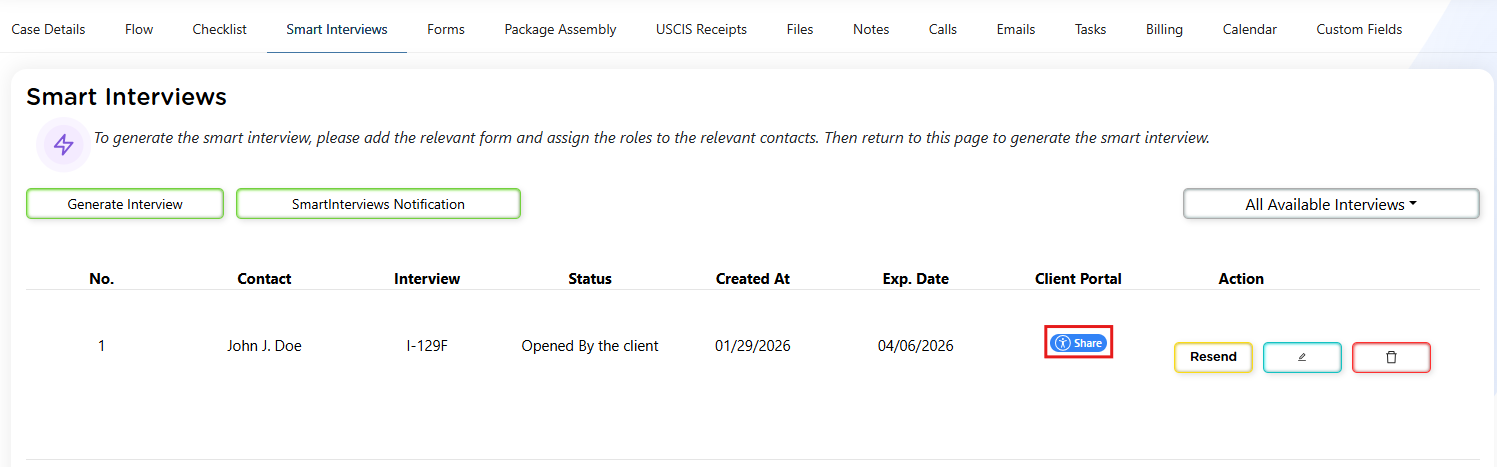
Each generated interview will display:
- Interview number
- Contact name
- Form type (e.g., I-129F)
- Status
- Created date
- Expiration date
- Client Portal share option (optional)
Status Flow
The status will change as the interview progresses:
- Sent
- Opened
- Submitted / Received
- Reviewed
The expiration date is intentionally generous and helps prevent interviews from remaining open indefinitely.
Step 3: Sending the Smart Interview
After generating the Smart Interview, you can send it in multiple ways.
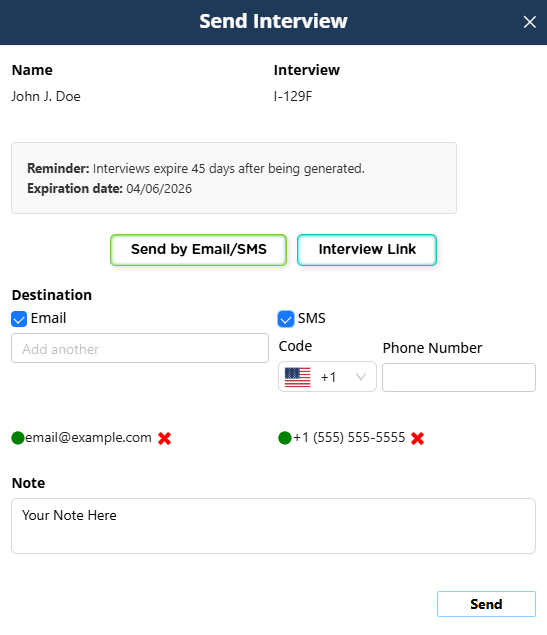
Option 1: Send via Email
- Click Send
- Add an optional note (this appears in the message your client receives)
- The client receives an email with a button
- Clicking the button opens the Smart Interview directly
Option 2: Send via SMS (Text Message)
- Send the interview link directly through text
- Ideal for clients who respond faster to SMS
Option 3: Generate a Direct Link
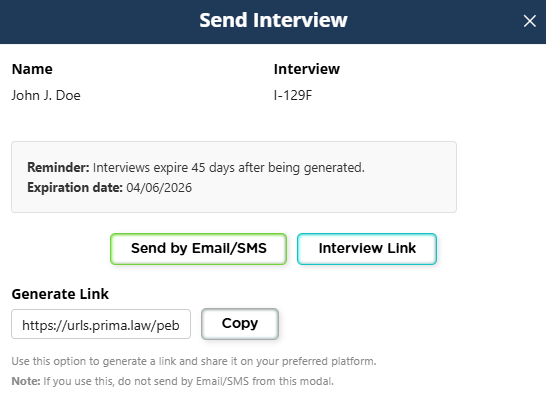
- Copy the Smart Interview link
- Share via:
- Messaging apps
- Secure chat systems
- Any communication platform
Option 4: Share via Client Portal
- Use the Client Portal column toggle
- The interview becomes available inside the client’s portal
- The client accesses it from their portal dashboard
Again, the Client Portal is convenient but not required.
Configuring Notifications
Next to the Generate Interview button, you’ll find a settings option to configure:
- Who receives the notification when the client submits the interview
This ensures the right staff member is alerted immediately.

Client Experience
From the client’s perspective:
- They click the link (email, SMS, portal, etc.)
- They open the Smart Interview
- They click Edit
- They complete the questionnaire step-by-step
- They submit the interview
After submission:
- The interview cannot be edited further by the client
- You receive a completion notification
- The status updates in the Smart Interviews list
Step 4: Reviewing and Importing Data
Once submitted:
- Click Review
- Examine the answers
- Confirm or request additional information if needed
- Import the data
When you import:
- The form is populated
- The contact profile is updated
- The data becomes available for Autofill across other forms
This is critical.
Smart Interviews do not just fill one form — they update the database. That means:
- Future forms autofill faster
- Information remains consistent
- Manual re-entry is reduced dramatically
If answers are incomplete:
- You can resend the interview
- The client can finish missing sections
Managing Smart Interviews
Inside the Smart Interviews tab, you can:
- View all interviews generated in the case
- Access a dropdown list of all available Smart Interviews in Prima.Law
- Resend an interview
- Review submitted answers
- Track interview status
Why Use Smart Interviews Instead of Editable Forms?
Smart Interviews are:
- Structured and guided
- Easier for clients to understand
- Less overwhelming than full USCIS forms
- Designed for structured data collection
They are ideal for:
- Initial intake
- Updating incomplete records
- Collecting detailed structured information
- Reducing back-and-forth corrections
Recommended Workflow: Generate Smart Interviews Sequentially
While Prima.Law allows multiple Smart Interviews to be generated at the same time, we strongly recommend using a sequential workflow instead.
Smart Interviews are generated based on the data available at the time of creation (from the contact record and any existing forms). This means that if you generate several Smart Interviews at once, they will all reflect the same initial dataset.
If one of those interviews is later completed and imported, updating the contact and form data, the other previously generated interviews will not automatically update with this new information.
Why Sequential Generation Matters
To ensure accuracy and reduce redundant data entry:
- Generate the first Smart Interview
- Have the client complete it
- Import the data into the system (this updates the contact and forms)
- Generate the next Smart Interview
By following this process, each new Smart Interview will include the most up-to-date information already provided by the client.
Benefits of This Approach
- Reduces duplicate questions for the client
- Ensures each interview reflects the latest available data
- Improves data accuracy across forms
- Creates a smoother, less confusing experience for both staff and clients
In short, generating Smart Interviews one at a time leads to a more efficient and reliable data collection process.
NOTE: You can verify which forms are available as Smart Interviews by clicking on the "All Available Interviews" dropdown menu to see a full list. This is only a list, Smart Interviews cannot be generated from this menu.