Capturing and Converting Leads into Cases
Part 1: Automated Lead Capture (Admin Setup)
If you are an administrator, you can generate lead intake links directly from the system.
Step 1: Access Lead Intake Settings
- Click your name in the top-right corner.
- Select Administrator Panel.
- Go to the Firm Info tab (second tab).
- Scroll to the Leads Section.
You will see two intake options.
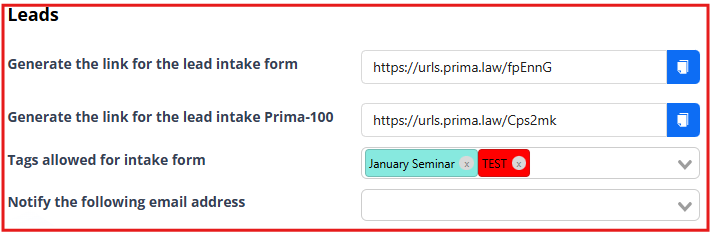
Option 1: Simple Lead Intake (Quick Form)
This is a short and easy form designed to avoid overwhelming potential clients.
How to use it:
- Generate the link.
- Embed it on your website.
- Share it in emails, social media, or ads.
This form captures basic contact details and creates a new lead automatically in your system.
Best for:
- Website contact pages
- Referral campaigns
- Events
- Quick inquiries
Option 2: Prima-100 (Comprehensive Intake)
The Prima-100 is a more detailed intake form.
It works similarly to a Smart Interview but is designed specifically for leads.
Use it when:
- A potential client has shown serious interest.
- You need more detailed background information.
- You are preparing for a consultation.
You can:
- Send the The Prima-100 is a more detailed intake form. link manually via email or text.
- Use it after a simple intake submission to gather deeper information.
Important:
The The Prima-100 is a more detailed intake form. can be generated and shared by non-admin users directly from the Leads screen.

Managing Lead Tags
Under the same Leads section in Firm Info, administrators can manage Lead Tags.
Tags allow potential clients to indicate how they found your firm.
Examples:
- Referral
- Social Media
- Event
- Google Search
- Past Client
You can:
- Create new tags
- Delete tags
- Control which tags appear in the intake dropdown
This helps with:
- Marketing tracking
- Referral program management
- Campaign analysis
Lead Notifications
Still in the Leads section, you can assign notification recipients.
Choose which users should be notified when:
- A new lead is submitted
For example:
- Front desk staff
- Intake coordinator
- Sales team
If the email belongs to a Prima.Law user, they will receive automatic notifications inside the system.
This ensures no lead goes unnoticed.
Part 2: Creating Leads Manually
Leads can also be created manually inside Prima.Law.
Step 1: Go to the Leads Hub
- Open the sidebar menu.
- Click Leads.
- Click New Lead (top-right corner).

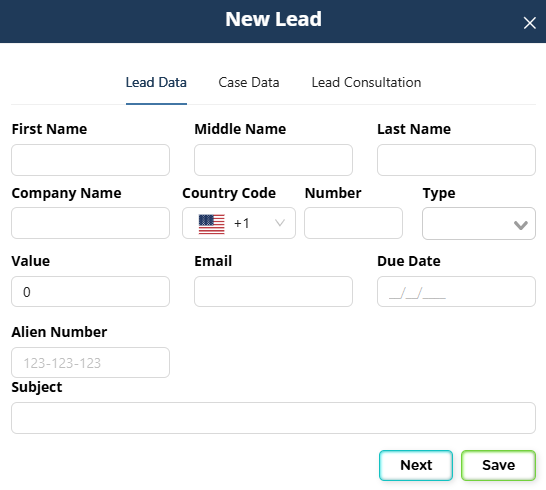
Step 2: Enter Lead Information
You can input:
- First and last name (or company name)
- Phone number
- Lead status
- Consultation details
- Notes
- Tags
You control how much information you collect.
Lead Status Management
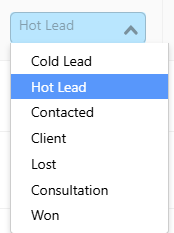
Each lead can be assigned a status.
Common statuses include:
- Cold Lead
- Hot Lead
- Contacted
- Consultation Scheduled
- Won
- Lost
Using lead status helps you:
- Track progress
- Prioritize follow-ups
- Measure conversion rates
- Identify re-engagement opportunities
Organizing and Tracking Leads
The Leads Hub allows you to:
- Filter
- Sort
- Group
- Customize columns
Examples:
- Group by Cold Leads to run follow-up campaigns.
- Filter by Hot Leads for immediate outreach.
- Sort by consultation date.
- Create views for specific staff members.
This keeps your intake pipeline organized and separate from active clients.
Part 3: Sending Prima-100 Without Admin Access
Even if you are not an administrator, you can still send the Prima 100 link.
From the Leads screen:
- Click the Prima 100 option.
- Copy the link.
- Share it via email, SMS, or any communication method.
The Simple Intake link is static, meaning:
- It remains the same.
- It can be embedded permanently on your website.

Best Practices for Lead Management
- Embed the Simple Intake on your website.
- Assign someone (front desk or intake staff) to monitor leads daily.
- Use tags to track referral sources.
- Use lead statuses consistently.
- Group cold leads for periodic follow-up campaigns.
- Keep leads separate from contacts until conversion.
Converting a Lead into a Contact
When a lead becomes a client:
- Convert the lead into a contact.
- Open an Intake Case.
- Begin the case lifecycle.
This keeps your system clean:
- Leads stay in the Leads Hub.
- Clients move into Contacts and Cases.
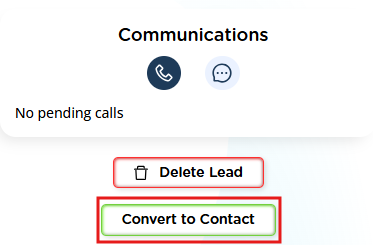
How to Convert a Lead into a Contact and Automatically Create a Case in Prima.Law
When you create a lead—whether manually, through an intake link, or from an intake form—the conversion process is very simple:
1. Open the lead
Go to Leads and click on the specific lead you want to convert.
2. Convert the lead to a contact
On the right-hand side of the lead page, you will see a button labeled Convert to Contact.
Clicking this button immediately converts the lead into a contact.
3. (Optional but recommended) Automatically create a case during conversion
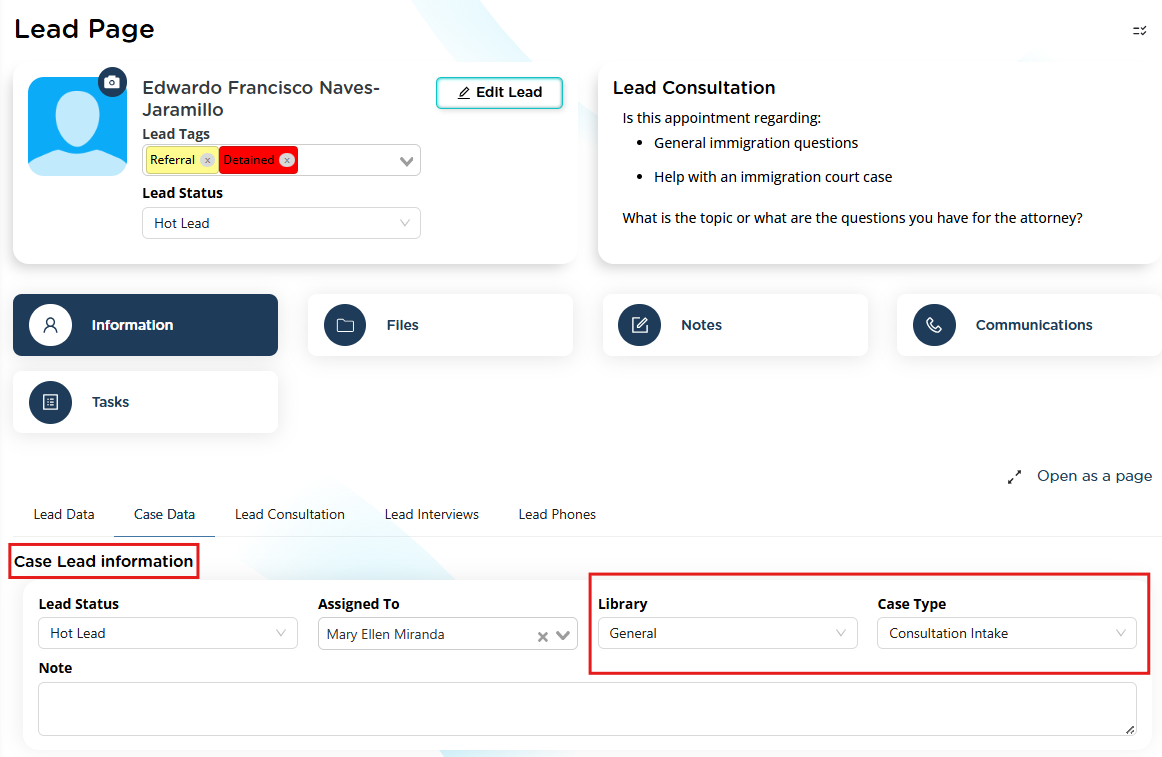
If you want Prima.Law to automatically open a case for this lead at the moment it becomes a contact, you can set that up inside the lead:
- Go to the Information tab of the lead
- Scroll to Case Data
- Select:
- Library
- Case Type
Once you choose a Library + Case Type, Prima.Law will automatically create the case as soon as you click Convert to Contact.
This means you don’t need to manually create the case afterward—the system handles it for you.
Why this is useful
This workflow is faster and keeps your pipeline clean:
- Leads stay in the Leads module
- Contacts and Cases stay in their respective modules
- Case creation becomes a one‑click automated process
NOTE: You may delete Lead entries through the Actions column (all the way to the left side of the Leads Screen). We do not recommend doing this as it may negatively affect lead/client lifecycle tracking.