First Login & Profile Setup
This guide walks you through your first login to Prima.Law and how to set up your personal profile.
Logging in for the first time
- Open your invite email and click the login link.
- Sign in using the email address associated with your account.
- Once logged in, you’ll land on the Prima.Law dashboard.
Updating your personal profile
- Click your name in the upper-right corner of the screen.
- Select Update Profile.
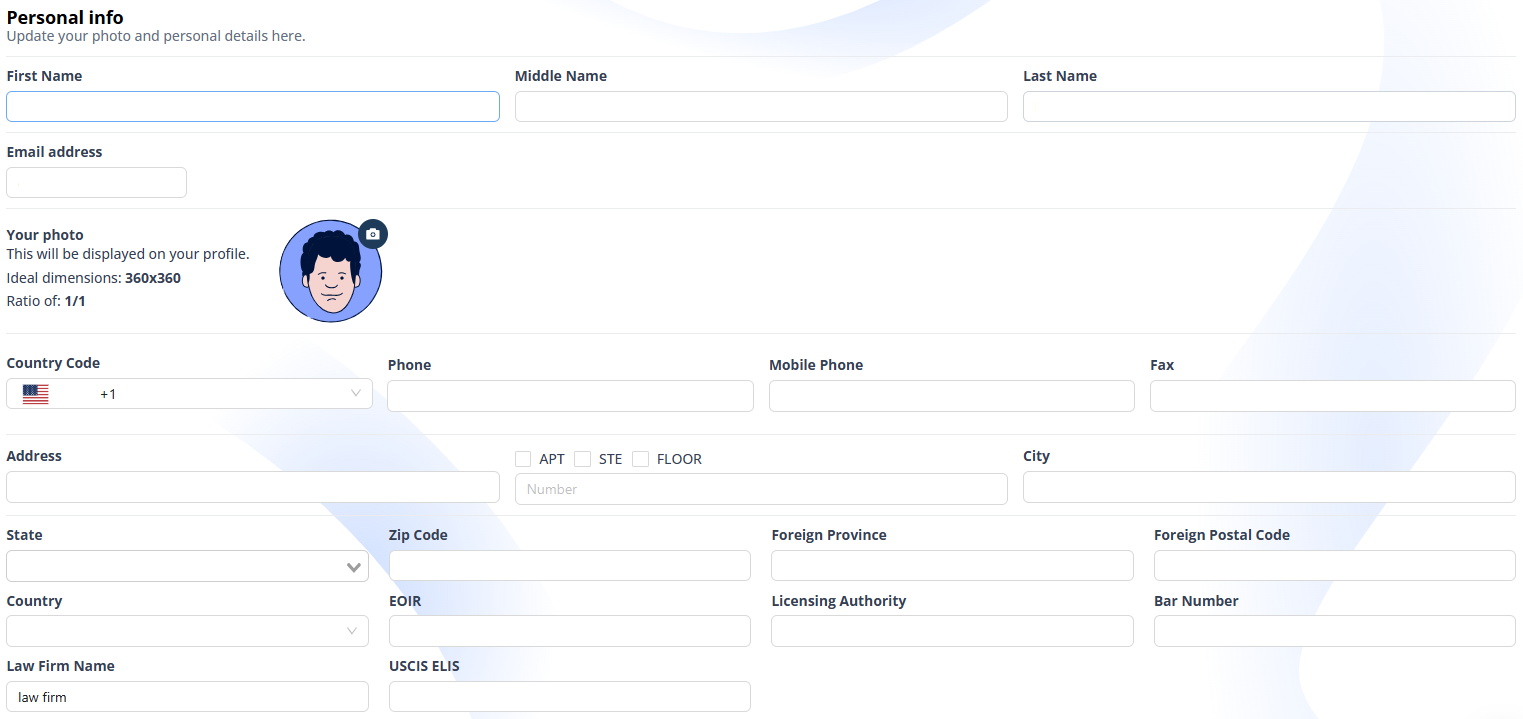
- Review and update your personal information, including:
- Name and contact details
- Profile Picture
- Law Practice Details (If applicable)
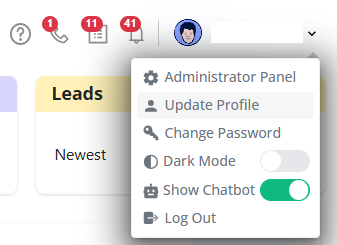
Dark Mode Toggle
Users can switch between light and dark themes at any time. To access this option, click your name in the upper‑right corner to open the settings menu. The Dark Mode toggle is off by default. Turning it on immediately changes the Prima.Law interface to a darker, low‑glare theme that some users find more comfortable for extended work sessions.
Chatbot (Maya) Toggle
Prima.Law includes Maya, your built‑in AI assistant, available through the chat bubble in the lower‑right corner. In the same settings menu, users will find the Show Chatbot toggle. This option is on by default
Admin vs non-admin users
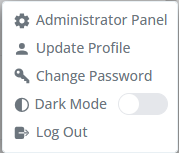
- Non-admin users can only edit their own profile information.
- Admin users will see additional options that give access to workspace and firm settings.\
Make sure your profile information is accurate, as it’s used across cases, documents, and client communications.