
Uploading & Managing Files
How File Storage Works in Prima.Law
File storage in Prima.Law is case-based only (This means it is only accessible through the Case Page).
Important things to know:
- Files are stored per case.
- There is no general file storage area.
- There is no file storage directly under a contact.
If you need to store documents for a contact, you must open or use an existing case and upload the files within that case.
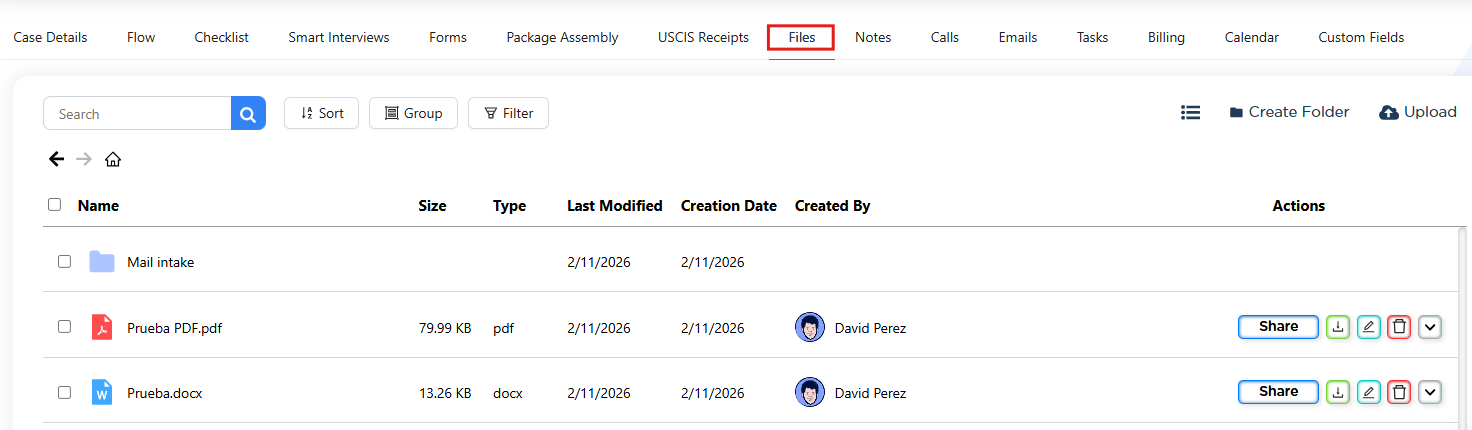
Uploading Files Through the Checklist
The Checklist tab allows you to upload documents directly to each checklist item.
When uploading documents through the Checklist:
- Files are associated with that specific checklist item.
- If Client Portal access is enabled, shared documents will be visible to the client.
- If Client Portal is not enabled, files remain accessible internally within the case.
When using Package Assembly to prepare documents for review or paper filing:
- The generated documents will also appear in the Files tab.
- They may appear under a different category depending on how the package is created.
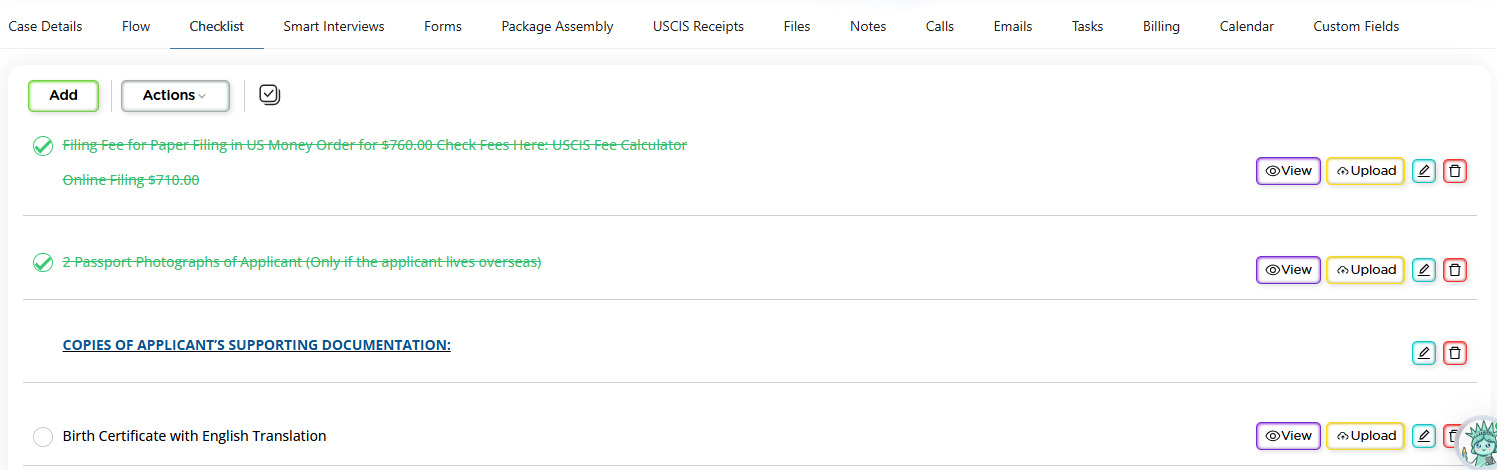
Using the Files Tab
In addition to the Checklist, you can upload files directly into the Files tab of the case.
Features available in the Files tab include:
- A default root folder
- The ability to create additional folders
- The ability to create subfolders
- Upload button at the top
- Folder creation button at the top
You can organize your files however you prefer. Some firms use structured folders and subfolders, while others upload files directly without creating additional folders.
Both approaches are fully supported.
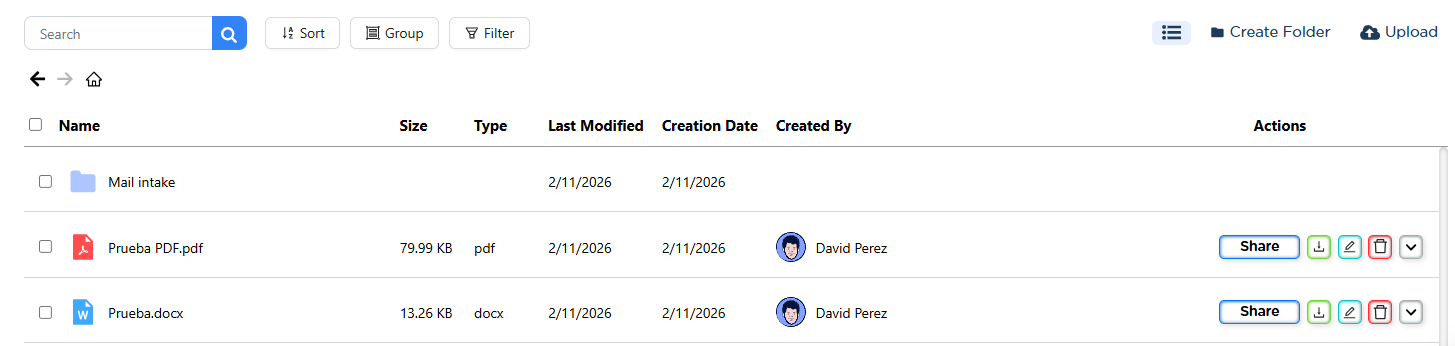
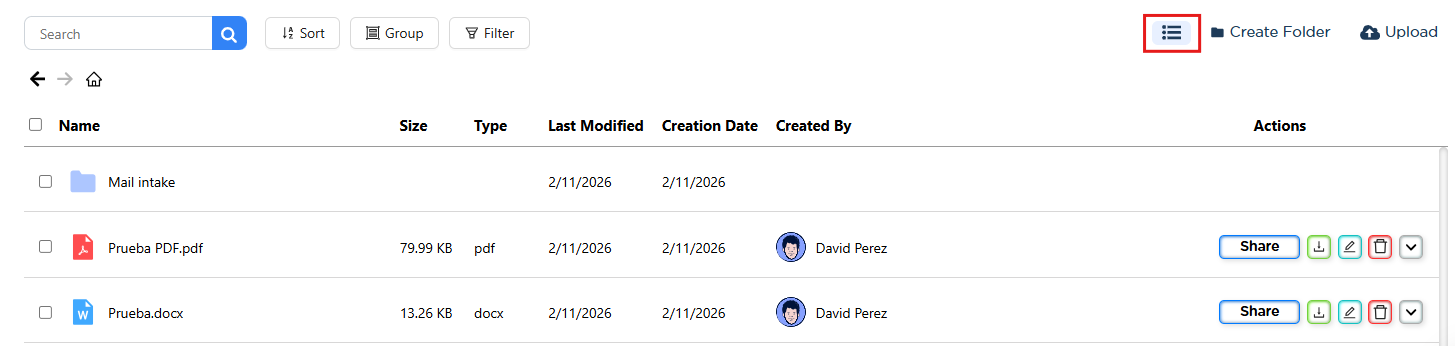
Viewing Options
You can switch between:
- Icon View (classic tile-style layout)
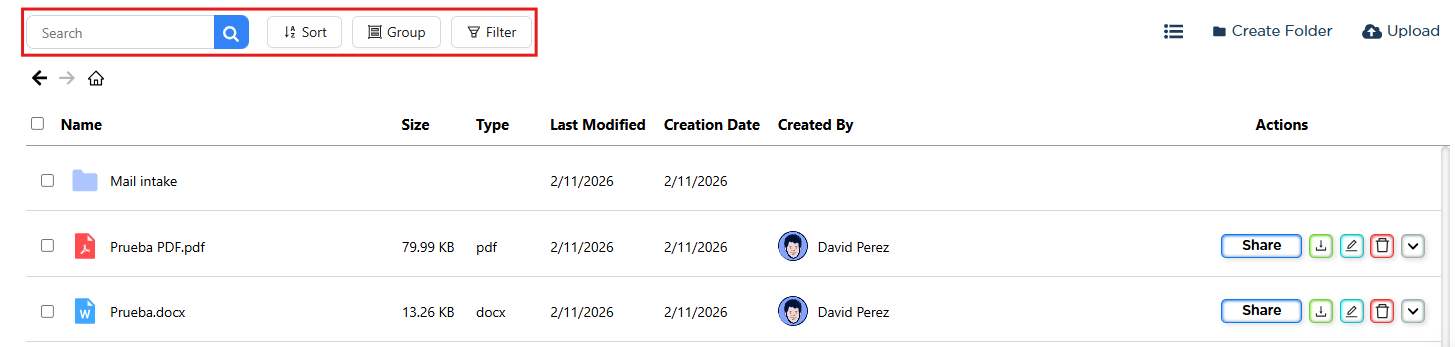
- List View (column-based layout with more details)
List view provides more information at a glance, including sortable columns.

File Organization Tools
Prima.Law provides multiple tools to help you manage files efficiently:
- Search by file name or keywords
- Sort files
- Group files
- Filter files by parameters
- Create folders and subfolders
These tools allow you to keep even large case files organized and easy to navigate.
File Size and Storage Limits
There is:
- No limit on the number of files per case
- No limit on file size
However, keep in mind that very large files may cause:
- Package Assembly generation to take longer
- Longer download times
Performance is relative to file size.
Sharing and Managing Files
You can:
- Share files through the Client Portal (if enabled)
- Download files by clicking the download button
- Preview files (by clicking the file name)
Each file includes an Actions button that allows you to:
- Download files
- Rename files
- Delete files
- Copy files
- Move files
- Duplicate files

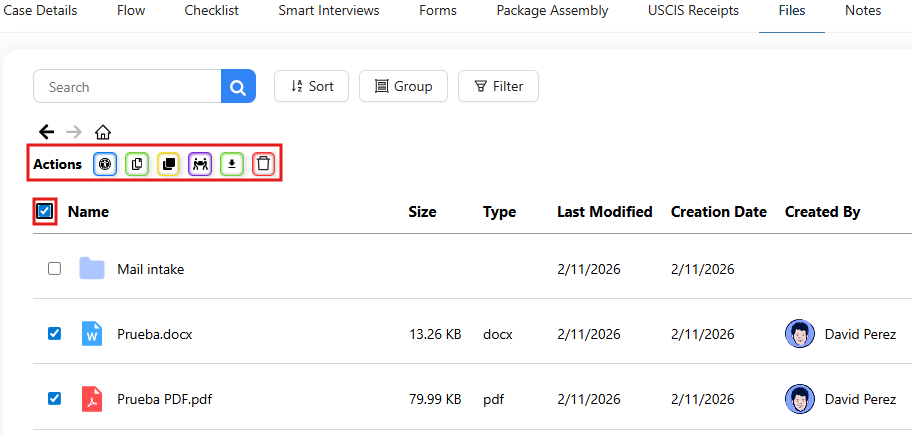
Bulk Actions
You can select multiple files and perform bulk actions such as:
- Share in bulk
- Copy in bulk
- Move in bulk
- Duplicate in bulk
- Download in bulk
This makes it easy to manage large volumes of documents efficiently.
Final Notes
Prima.Law’s case-based file management system gives you flexibility, organization, and secure collaboration with your clients. Whether you prefer detailed folder structures or a simplified upload approach, the system supports your workflow while keeping everything tied directly to the appropriate case.
Using these tools effectively will help maintain a clean, organized, and professional case file system.