
Autofill Overview
Autofill in Prima.Law allows you to reuse client data across forms, cases, and packages without retyping information. It works by pulling data from the contact database and, when enabled, saving new data back into it.
This article explains the three main ways data enters the system and how autofill uses that data.
How data gets into Prima.Law
Prima.Law supports multiple data entry methods. You can use one or combine them.
1. Smart Interviews
- Generate Smart Interviews from the Forms tab in a case.
- Assign roles (petitioner, beneficiary, etc.) before generating.
- Send the interview to the client or complete it internally.
- Review the submitted data before importing.
- Imported data is saved to the contact and used for autofill.
Best for structured, client-provided data.
2. Manual entry in contact or case tabs
You can enter data directly into tabs such as:
- addresses
- marriage history
- employment history
- immigration history
- phone numbers and passports
Data entered here is stored in the database and will autofill into forms automatically. Best when you already have reliable information.
3. Direct form editing with Reverse Autofill
You can also enter data directly into forms.
- Open a form from the Forms tab.
- Assign the correct role (client/beneficiary/etc.).
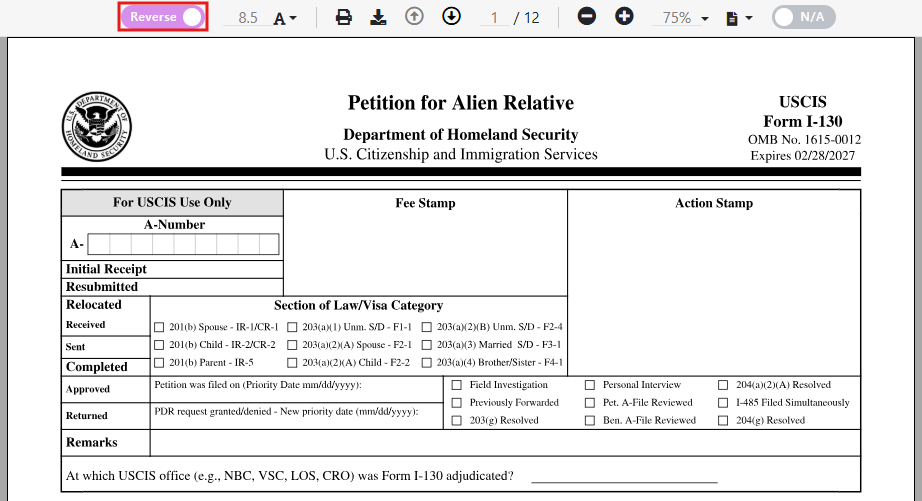
- Turn Reverse Autofill ON.
- Fields highlighted in purple are database-linked.
- Data typed into those fields is automatically saved to the contact.
No manual save is required.
Using Autofill on forms
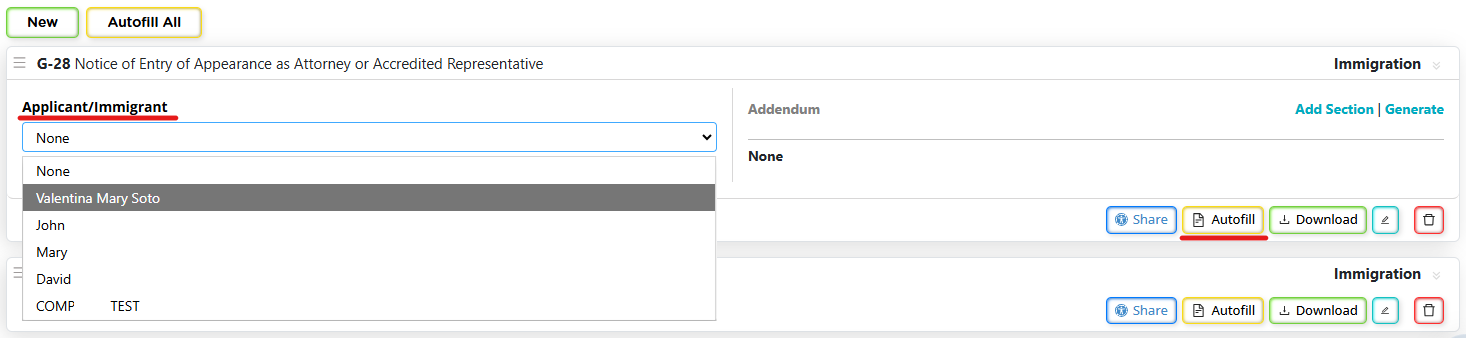
To autofill a form:
- Open the Forms tab in the case.
- Select the form.
- Assign the correct contact to each role.
- Click Autofill.
To update forms after data changes:
- Click Autofill on a single form, or
- Use Autofill All to refresh all forms in the case.
Reverse Autofill: critical behavior to understand
When Reverse Autofill is enabled:
- Changes made in purple fields are written back to the contact database.
- This ensures consistency across all forms and cases.
Important warning
- Do not delete or blank out name fields while Reverse Autofill is ON.
- Doing so will remove the name from the contact record.
Addendums and long histories
For clients with extensive histories:
- Prima.Law can auto-generate addendums.
- Review and edit addendums as needed before final submission.

Best practices
- Always select the correct role (Role Assignment process) before autofilling.
- Assign roles to forms individually and sequentially. It is best to go form by form in order for Autofill to include all previously manually input / Imported from Smart Interview data to populate subsequent forms.
- Review data after Smart Interviews before importing.
- Keep Reverse Autofill enabled unless you have a specific reason to disable it.
- Re-autofill forms after updating contact data.
Autofill works best when contact data is accurate and roles are assigned correctly.