
Common Issues & Quick Fixes
Password reset issues
If you are NOT an admin
- Go to the Prima.Law login page.
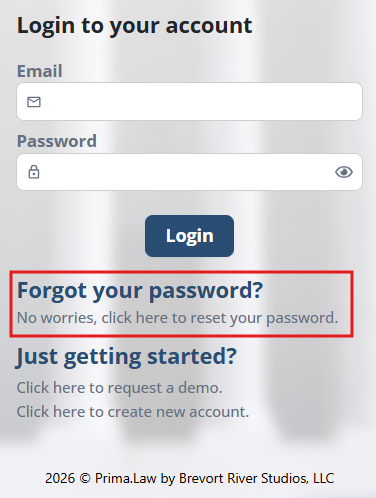
- Clickon "click here to reset your password." "Forgot your password?"
- Enter your email address.
- Check your inbox for the reset email.
- If you don’t see it, check your spam/junk folder.
If you ARE an admin resetting a user’s password
- Click your name in the top-right corner.
- Open the Administrator Panel.
- Go to the Subscriptions tab.
- Open the Users section.
- Locate the user.
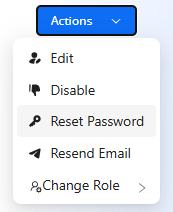
- Click Actions → Reset Password.
A reset email will be sent to that user.
If it doesn’t arrive, have them check their spam folder.
Page or elements not loading (specific tabs like "Files" in the Case Page, or Smart Interviews, etc), freezing, blank, or looping
If a contact page, case page, or board keeps loading or appears stuck:
Clear browser cache (recommended first step)
- Windows:
Ctrl + Shift + R - Mac:
Command + Shift + R
This forces a refresh without cached data and usually resolves:
- loading loops
- blank pages
- partial data not rendering
If the issue continues:
- confirm you’re using Google Chrome or a Chromium-based browser
- avoid opening too many tabs if your device has limited RAM, disable browser extensions and / or VPN if applicable
- If refreshing without cache does not help, please log out and log back in.
If you continue experimenting issues, please contact support@prima.law
Browser compatibility issues
Prima.Law is a web-based platform.
Recommended
- Google Chrome (best compatibility)
- Other Chromium-based browsers (Edge, Brave)
Not fully supported
- Non-Chromium browsers may limit functionality, especially:
- e-filing
- extensions
- some dynamic UI behavior
For full functionality, use Google Chrome.
Contact name appears blank, contact seems missing or disappeared
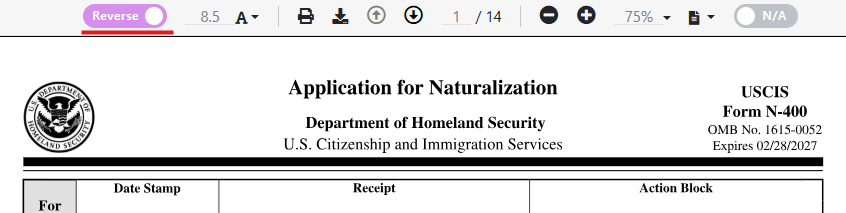
If a contact appears to have disappeared from your database, but you are confident it existed before, the contact is usually not deleted. In most cases, this happens because the contact’s name fields were unintentionally cleared while editing a form with Reverse Autofill enabled.
Why this happens
When Reverse Autofill is turned on in the form editor, any changes you make to certain fields are written back to the underlying contact record.
If you:
- Delete a first name or last name field in a form
- Leave it blank
- Exit the form editor without immediately replacing the name
then that blank value is saved to the contact. This results in:
- Blank name fields on the contact
- The contact becoming unsearchable by name
- The impression that the contact has disappeared
How to find a missing contact
Because forms are always linked to a case, the contact can almost always be recovered through the case.
To locate the contact:
- Go to the Case Management Board, or
- Review your recent cases list
Use any information you remember to narrow it down:
- Case name
- Case type
- Assigned attorney or paralegal
- Status or Meta Status
Once you identify the case:
- Open the Case Page
- Click the contact name area (the name is always clickable, even if partially blank)
- This will take you to the Contact Page
From there:
- Edit the contact
- Restore the correct first and last name
- Save the contact
After restoring the name:
- Return to the case
- Open the Forms tab
- Use Autofill again to repopulate the form fields
Best practices to avoid this issue
- Do not leave name fields blank when Reverse Autofill is enabled
- If you need to change a name, replace it immediately rather than clearing it first
- Pay close attention to which role a field belongs to when editing forms
- Be especially careful not to overwrite:
- Beneficiary names with petitioner data
- Petitioner names with beneficiary data
Reverse Autofill is a powerful tool, but it should be used intentionally. Understanding which contact a field belongs to helps prevent accidental data changes and keeps your contact database clean and searchable.
E-filing not working
If e-filing options are missing or not working:
- Open Google Chrome.
- Go to the Chrome Web Store.
- Search for Prima.Law Extension.
- Add the extension to your browser.
Important notes:
- The extension only works on Chromium-based browsers.
- Clicking Send to Extension only exports data from the form.
- You must still complete the remaining steps on the USCIS, DOL, or CEAC website.
- Make sure all required form fields are completed before exporting.
Why can’t I send emails?
If you are unable to send emails from Prima.Law, it is usually because not all required permissions were granted when the email account was connected, or just a simple integration refresh is needed.
To fix this, you will need to disconnect and reconnect your inbox:
- Click on Email in the left sidebar.
- Click on Settings next to New Email.
- Disconnect your email account.
- Reconnect it and make sure to grant all permissions when prompted.
If you are not an admin, you can complete these steps directly from the Email section. If you are an admin, you can also manage the connection from the Integrations section inside the Admin panel.
The easiest and fastest method is through the Email list screen. If the issue continues after reconnecting, please contact support for further assistance.
A USCIS or government form was updated. How do I know if Prima.Law has already updated it in the system?
Prima.Law receives direct notifications when forms are updated. In most cases, once a new version of a form is released, our team reviews the update and implements it in the system within the next two business days. If the update occurs over a weekend or outside normal working hours, the update is completed as soon as possible on the next business day to avoid interruptions to users' casework.
However, there are occasional situations where USCIS or another government agency releases an updated form without sending a notification. When that happens, it may take a little longer for the update to appear in the system because our team must first identify the change and then implement the update.
If you notice that a form appears to be outdated, we appreciate you letting us know. Your feedback helps us confirm the update and prioritize the implementation if it is still in progress.
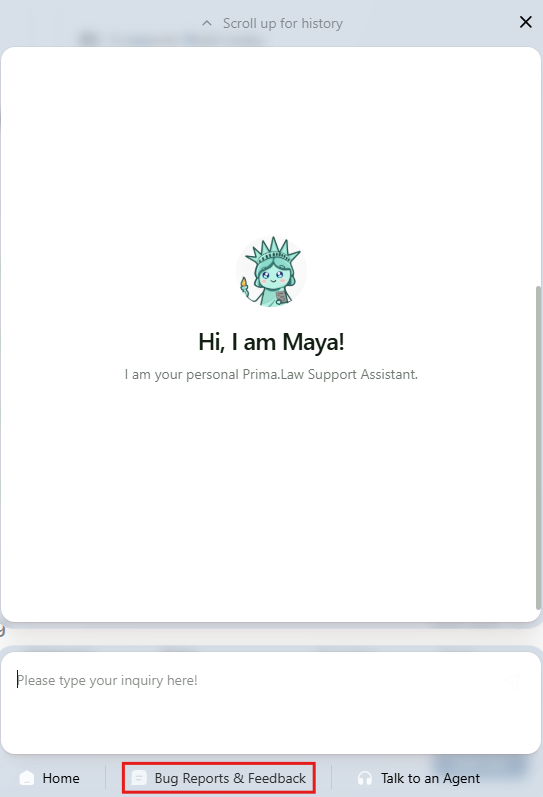
To report this quickly, please use the “Bug Reports & Feedback” option located in the lower section of the support widget. When submitting feedback, include as much detail as possible, such as:
- The name of the form
- The edition date or update date shown by the agency
- A link or reference to the updated form if available
While all support conversations are reviewed through our AI system, submitting feedback through the widget allows the issue to reach our team faster so we can verify the update and take action as quickly as possible.
Email Already Associated with an Account
If you see a message indicating that your email is already associated with a Prima.Law account, it means that the email is currently linked to another account and cannot be used again until it is removed.
To get assistance, please email support@prima.law from the same email address you are trying to use, requesting that it be removed from the existing account. Once completed, you will be able to use it again.
Recovering Deleted Files in Prima.Law
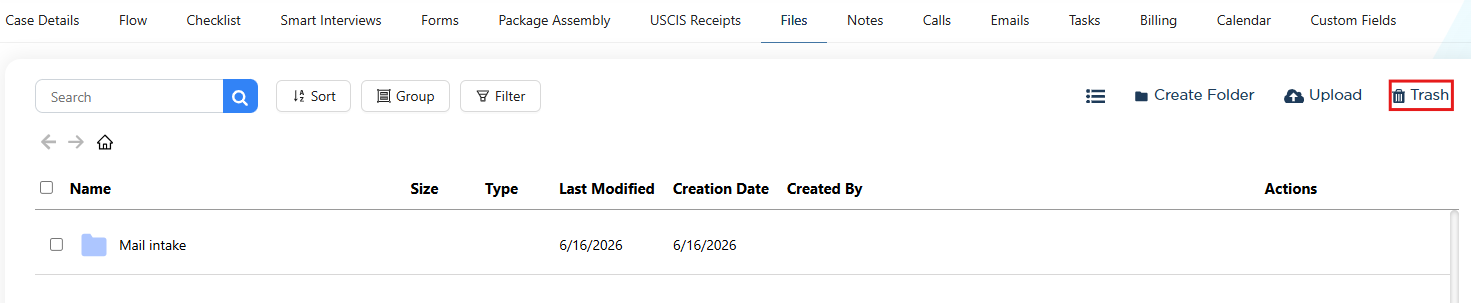
Users can restore accidentally deleted files directly from the Trash folder located inside every case’s Files tab. When a file is deleted, it isn’t removed permanently—it’s moved into this built‑in recycle bin.
Opening the Trash view shows all deleted items for that case, and from there users can restore files back to their original location or permanently delete them if they no longer need them.
This ensures that nothing is lost by mistake and gives every user a safe way to recover important documents.
Accidental Deletions (Contacts, Cases, Forms, Smart Interviews, Leads)
If something in Prima.Law is deleted by mistake — such as a contact, case, form, Smart Interview, or lead — recovery may be possible depending on several factors, including how long ago the item was deleted and the type of data involved.
Because recovery options vary, the best next step is to contact our Support Team directly so we can review the situation and determine whether a full, partial, or no recovery is possible.
What to do next
Please email support@prima.law (CC your account admin if applicable) with the following details:
- The item that was deleted (e.g., contact, case, form, Smart Interview, lead)
- The name of the contact or case involved
- The approximate date and time the deletion occurred
- Any additional context that may help our team identify the data
Once received, our team will analyze the request and confirm whether the deleted item can be restored.