
How to Make the most out of Maya
1. Using Maya to Ask Questions
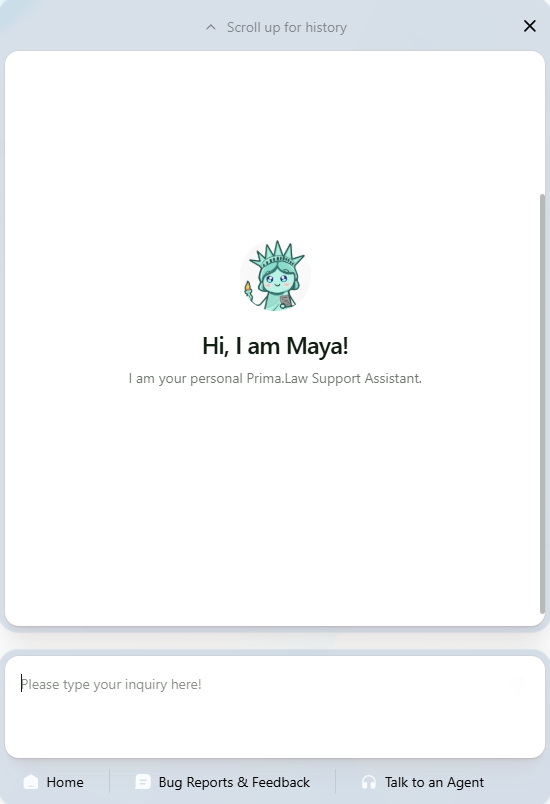
When you click the Maya widget, the chat window opens with the message:
“Hi, I am Maya! I am your personal Prima.Law Support Assistant.”
At the bottom, you’ll see a message box that says:
“Please type your inquiry here!”
How to Ask a Question
- Click inside the message field.
- Type your question (example: “Why is my form not autofilling?”).
- Press Enter or send your message.
Maya will respond in real time. If available, she will:
- Provide a direct answer
- Share a step-by-step guide
- Link you to relevant help articles
For many questions about settings, email sync, package assembly, interviews, or libraries, Maya can resolve the issue immediately.
If the answer is not sufficient, you have two additional options:
- Submit a detailed bug report
- Talk to a human support agent
2. Submitting a Bug Report or Feedback
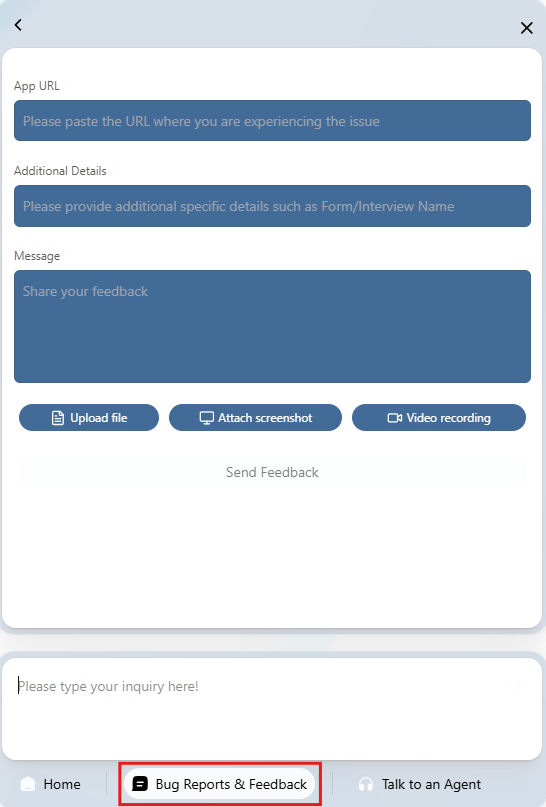
If something is not working correctly or behaving unexpectedly, use the “Bug Reports & Feedback” tab at the bottom of the Maya window.
Clicking this tab opens the full reporting form.
Step 1: Paste the App URL
In the App URL field:
- Go to the page where the issue is happening.
- Copy the full URL from your browser’s address bar.
- Paste it into the App URL field.
This helps our development team identify the exact location of the issue.
Step 2: Add Additional Details
In the Additional Details field, include specific information such as:
- Form name
- Interview name
- Client name (if applicable)
- Case type
- What action you were performing
The more specific you are, the faster we can investigate.
Step 3: Describe the Issue Clearly
In the Message section:
Explain what is happening and what you expected to happen instead.
Helpful details include:
- The exact steps you followed
- Any error messages shown
- When the issue started
- Whether it happens every time or intermittently
Clear descriptions significantly reduce investigation time.
Step 4: Attach Evidence (Strongly Recommended)
Below the message field, you will see three options:
- Upload file – Attach documents or supporting files
- Attach screenshot – Add a screenshot of the issue
- Video recording – Record a short screen video showing the problem
We strongly recommend using screenshots or video whenever possible. Visual evidence helps our developers reproduce and fix issues much faster.
You can include multiple pieces of evidence if needed.
Step 5: Send Feedback
Once everything is completed, click Send Feedback.
Your report is submitted directly to our team for review.
Best Practices for Faster Resolution
To help us resolve your issue quickly:
- Always include the App URL
- Include the form or interview name
- Add screenshots or video
- Explain what you expected vs. what happened
The more detail you provide, the easier it is for our development team to diagnose the issue accurately.
3. Talking to a Human Support Agent
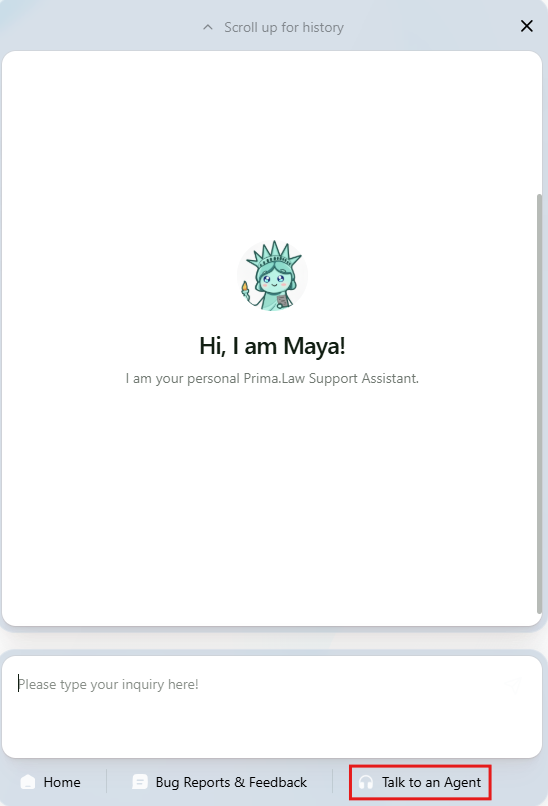
If Maya does not provide a satisfactory answer, you can speak directly with a live Prima.Law support agent.
Click the “Talk to an Agent” tab at the bottom of the Maya interface.
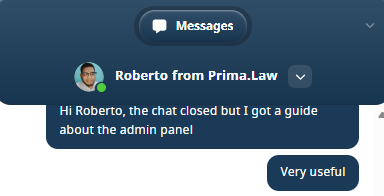
This opens a direct chat with a real support team member (not AI).
Use this option when:
- You have already reviewed Maya’s guidance
- The issue is complex or urgent
- You need clarification beyond the help article
- You prefer direct human assistance
Once connected, you can:
- Send messages
- Share screenshots
- Continue the conversation in real time
When Should You Use Each Option?
Use the main Maya chat when:
- You have a general question
- You need guidance on how something works
- You are looking for documentation
Use Bug Reports & Feedback when:
- Something is broken
- A feature is not behaving correctly
- You want to request an improvement
- You need to send screenshots or video evidence
Use Talk to an Agent when:
- The AI answer is not sufficient
- The issue requires discussion
- You need personalized assistance
Our Recommendation
Start by asking Maya your question.
If the issue persists, submit a detailed bug report with screenshots.
If you still need assistance, use Talk to an Agent to connect with our support team.
Providing clear information and evidence helps us resolve your issue as quickly and efficiently as possible.