
Email Integration (Gmail & Outlook)
This guide shows how to connect email (admin and non-admin), send emails, keep logs organized, and avoid common setup mistakes.
What the Email Integration Does
With Prima Mail Service enabled, you can:
- Connect Gmail or Outlook to Prima.Law
- View emails in the Email List hub (filter, sort, group, export)
- Send new emails from Prima.Law and log them automatically
- Reply to a thread from inside Prima.Law (from the contact’s communication history)
- Optionally relate an email to a specific case so it appears in that case record too
- Sync your mailbox if something looks out of date
There is no additional cost for this feature.
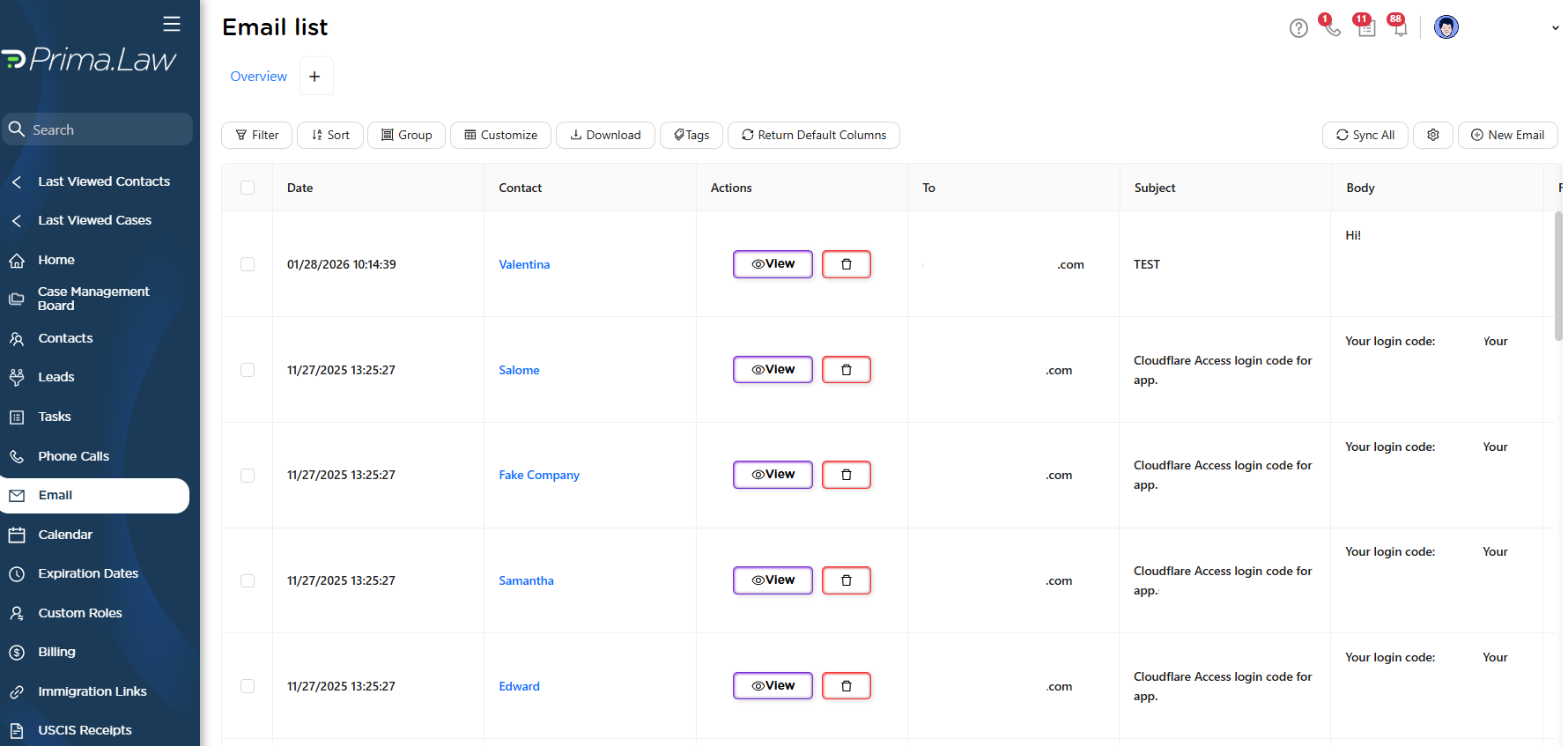
1) Where to Manage Email: The Email List Hub
- Open the left sidebar.
- Click Email List (right below Phone Calls).
The Email List works like other list screens in Prima.Law:
- filter, sort, group
- customize columns
- export to Excel
- tag emails
- reset to default view
2) Connect Email as a Non-Admin User
Non-admin users can connect their own mailbox directly from the Email List.
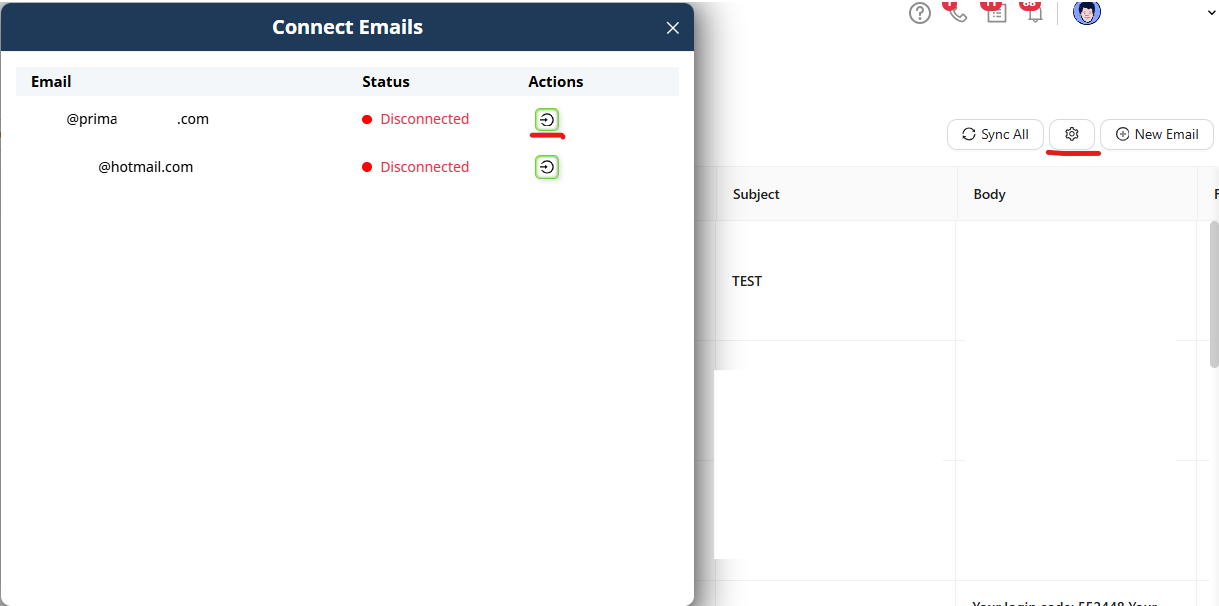
- Go to Email List.
- Click the Settings icon.
- Find your email connection status (your login email typically shows as Disconnected the first time).
- Click Actions on the disconnected account.
- Choose:
- Continue with Google (Gmail), or
- Connect with Outlook (Microsoft)
- Complete the Google/Microsoft authorization flow.
- Approve the requested permissions so Prima.Law can read and sync inbox activity and create email logs.
Outlook note (domain setups)
Depending on how your Microsoft domain is configured, you may see two approaches:
- Sign in as your user, or
- Use Admin Consent (common for IT-managed domains)
If your IT team grants admin consent, it usually makes it easier for other users in the same domain to connect their email afterward.
3) Connect or Manage Email as an Admin (Optional)
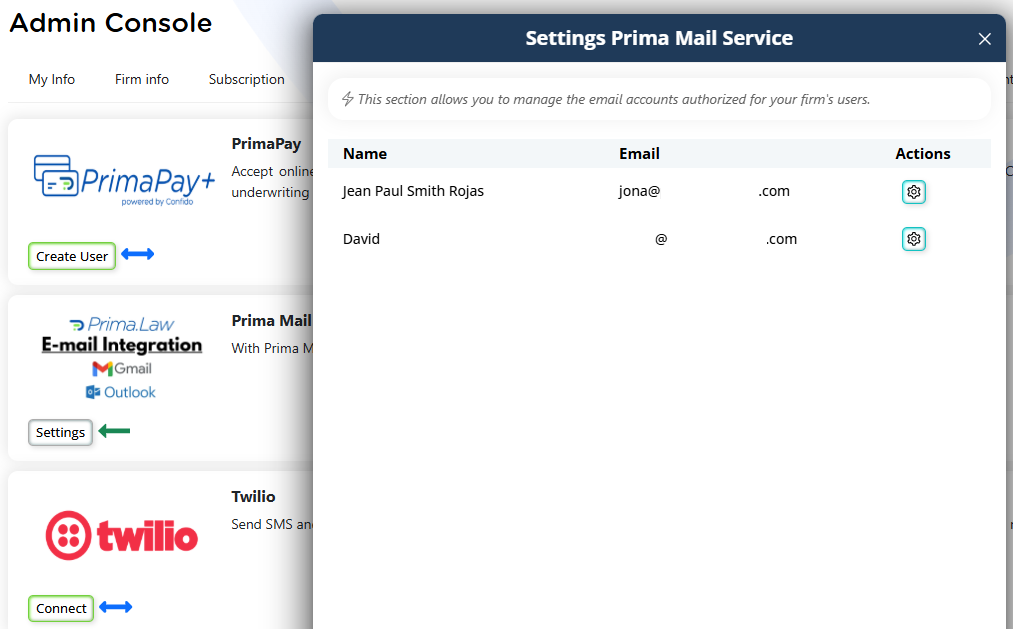
Admins can connect their own mailbox the same way as non-admins, but the Admin Panel also lets you manage email availability per user, including adding alternative sender addresses.
- Click your username (top-right).
- Click Administrator Panel.
- Open Integrations.
- Find Prima Mail Service (it’s the second card from top to bottom).
- Click Settings.
From here, admins can:
- manage connected email accounts
- add additional email addresses for a user (if someone wants to send from an email different from their Prima.Law login email)
Important: Admins typically use this area to manage which emails are available, but each user should usually complete the final connection themselves unless the admin also has access to the mailbox credentials.
NOTE: Only one Inbox can be connected at a time per user. Emails that exist as users within an account cannot be connected as another user's Inbox.
4) Sending an Email from Prima.Law (and Logging It Correctly)
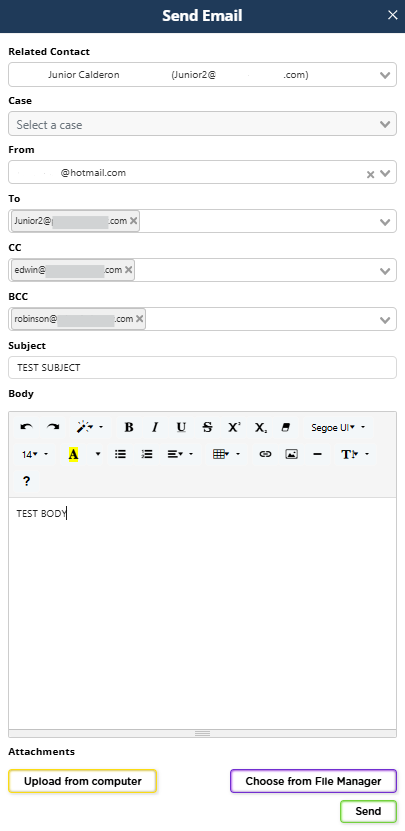
- Go to Email List.
- Click New Email.
- Select the From email (the connected account you want to send from).
- Enter the recipient email(s).
- Type the address and press Enter if needed.
- Choose the related Contact (this is what ensures logging lands in the right place).
- Optional: select a Case if you want the email log to appear in a specific case.
- If you leave case blank, the email will still log under the contact, just not tied to a case.
- Write the message using the editor.
- Attach files if needed:
- Choose from the File Manager, or
- Upload directly from your computer
- Click Send.
After sending, you’ll see the email logged in:
- the Email List hub, and
- the contact’s communication history (and the case too, if you selected one)
5) Replying and Continuing Threads from a Contact
If you want to continue a conversation later without searching your inbox:
- Open the client’s contact page.
- Go to Communications.
- Choose Email.
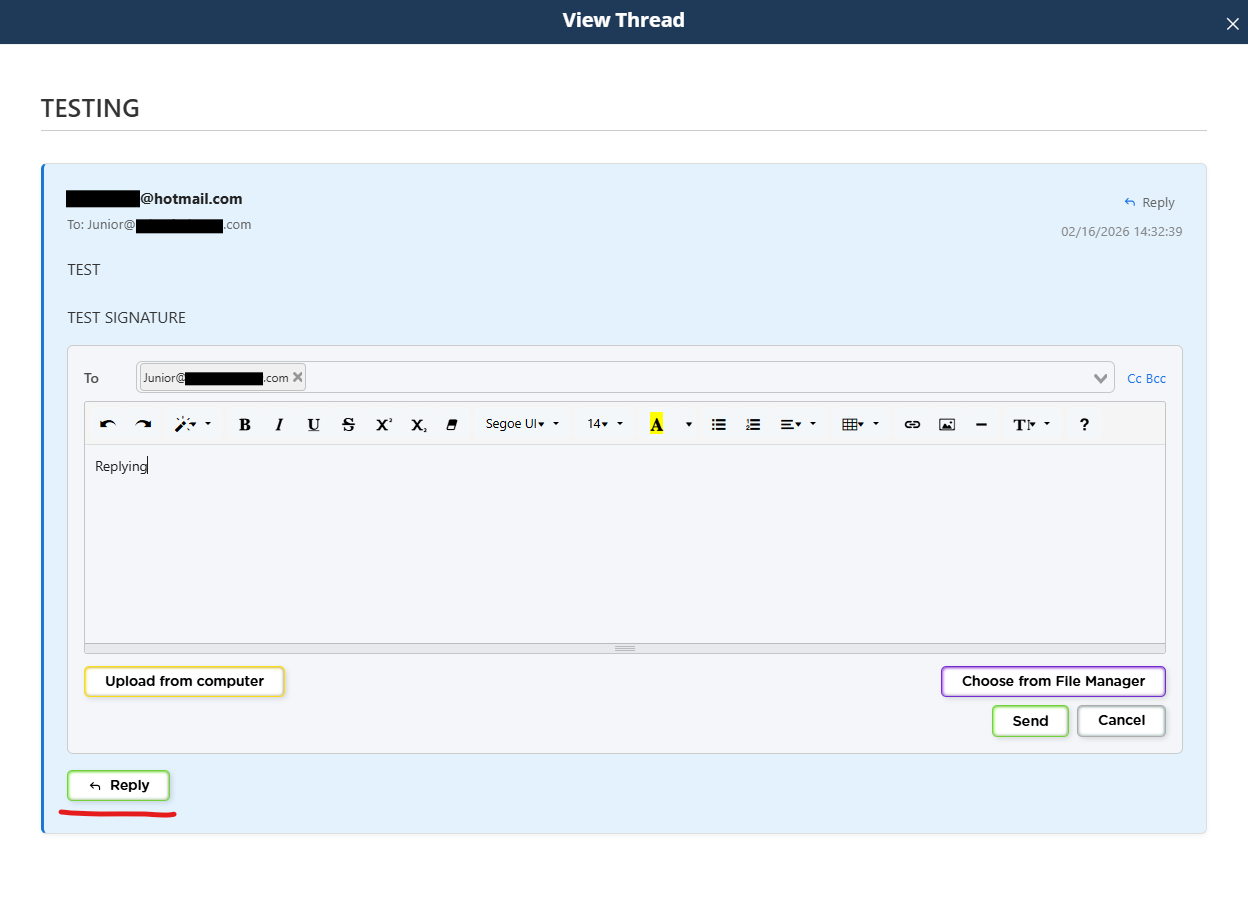
- Open the thread and click Reply.
You can keep the full conversation going inside Prima.Law, which helps when your personal inbox is overloaded or when multiple staff need visibility.
6) Signatures (Gmail vs Outlook)
Gmail
- Your Gmail signature is applied automatically when sending.
- It may not visibly appear inside the message editor in Prima.Law, but it will appear on the email that is sent.
Outlook
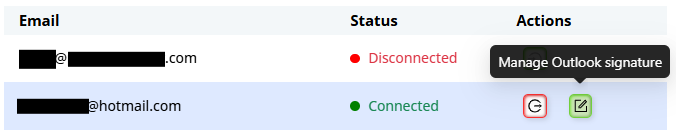
- Outlook requires you to set your signature inside Prima.Law.
- During setup, you’ll see an option to edit the signature.
The easiest approach is to copy/paste your existing signature from Outlook into the Prima.Law signature editor.
7) If Something Looks Missing: Use Sync All
If you notice a thread or message is missing from the log:
- Go to Email List.
- Click Sync All.
This forces the mailbox sync and often resolves missing log issues quickly.

8) Logging Emails Sent Outside Prima.Law (Gmail/Outlook Directly)
Even if you send an email directly from Gmail or Outlook (not from Prima.Law), it can still be logged into Prima.Law as long as:
- the email integration is connected, and
- the recipient is a contact in Prima.Law, and
- the contact’s email matches the address you’re communicating with
This is why clean contact emails matter. If the contact email doesn’t match what you’re using in real life, logging won’t attach correctly.
9) Critical Warning: Avoid Using Staff Login Emails on Contacts
Do not create contacts using email addresses that belong to Prima.Law users (staff login emails), especially for test contacts.
If a contact’s email matches a staff member’s real inbox address, Prima.Law may log that staff member’s email activity into the wrong contact record, which can:
- clutter the contact with unrelated threads
- create privacy and visibility problems
- cause confusion when searching conversations
Best practice: if you need test contacts, use emails that are not real staff inboxes and are not used as Prima.Law login emails.
10) Deleting Email Logs (Bulk or Individual)
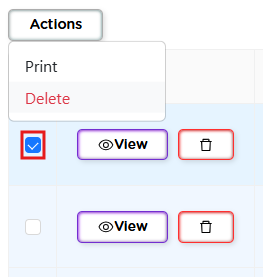
You can delete email logs you don’t want to keep:
- individually, or
- in bulk
Use this when a thread was logged unintentionally or you want to clean up old or irrelevant email history.
Quick Recap
- Connect email from Email List → Settings (non-admin friendly).
- Admins can manage accounts in Admin Panel → Integrations → Prima Mail Service.
- Send emails from Prima.Law to keep everything logged under the contact (and optionally a case).
- Reply from the contact page to keep working without opening your inbox.
- Use Sync All if logs are missing.
- Avoid creating contacts with staff login emails to prevent unwanted logging.