
Logging Tasks, Notes, and Phone Calls
Where Logging Happens in Prima.Law
Tasks, notes, and phone calls are always accessible. You can create and view them from:
- The Case Page
- The Contact Page
- The Home Page (Tasks & Calls Only)
- The Sidebar lists for Tasks and Calls
Each logging tool follows a similar creation flow, regardless of where you start.
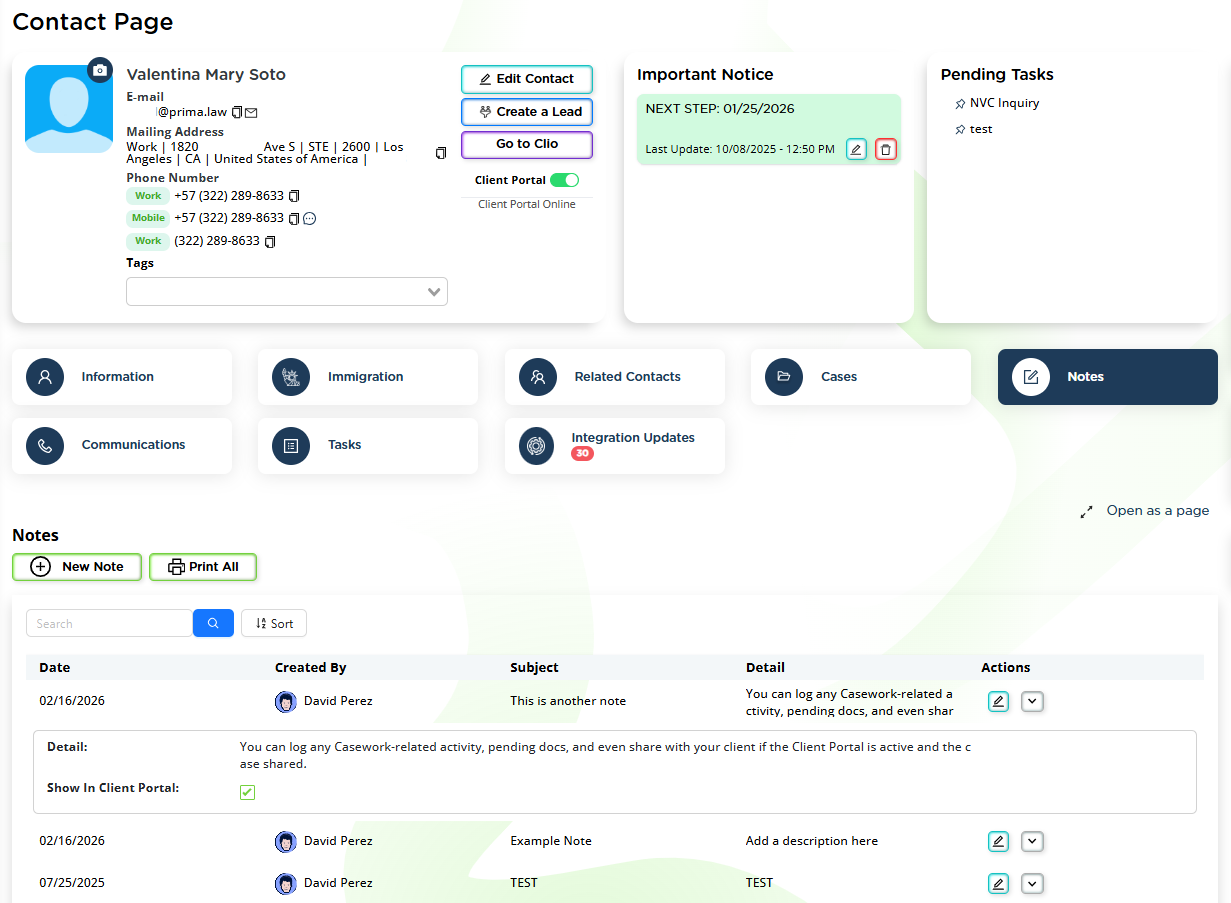
Notes: Context, Decisions, and History
Notes are used to record what happened, what was decided, and what the next step is. They form the internal narrative of a case.
Creating a Note
To create a note from a case:
- Open the Case Page
- Go to the Notes tab
- Click New Note
The note editor includes:
- Subject
- Date (can be backdated if the activity occurred earlier)
- A rich text editor for the body
The editor supports text formatting, links, images, and tables, allowing you to document information as thoroughly as needed.
Once saved, the note is immediately available.
Sharing Notes via the Client Portal
If the case has been shared through the Client Portal, expanding a note reveals an option to share it with the client. Sharing is optional and controlled per note.
Case-Level vs Contact-Level Notes
- Notes created under a case appear in both the case and the main contact
- Notes created under a contact can optionally be linked to a case
If a note does not relate to a specific case, it can remain contact-only.
Tasks: Work That Must Be Done
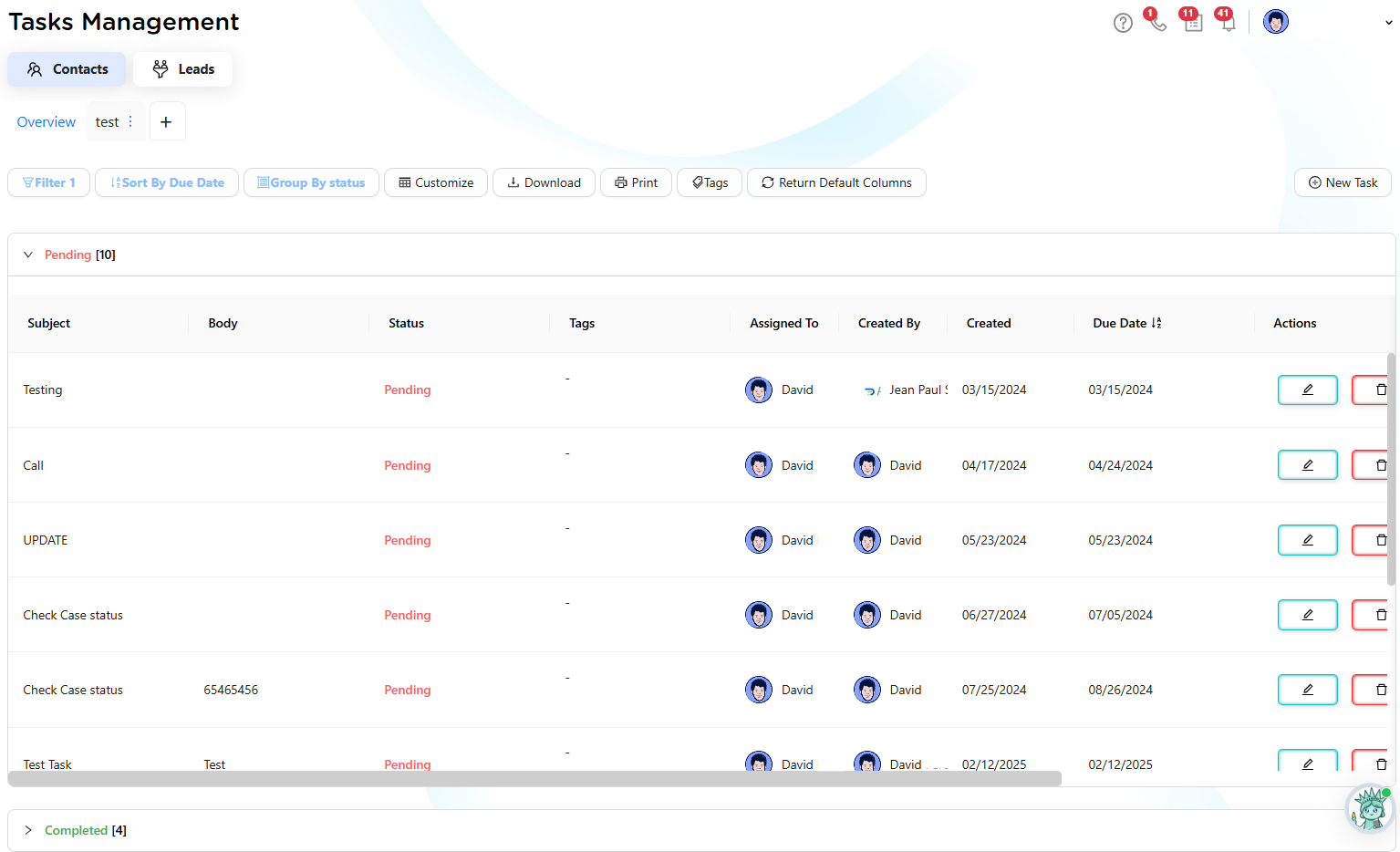
Tasks are used to track actionable work. Unlike notes, tasks have ownership, deadlines, and status.
Creating a Task
Tasks can be created from a case, a contact, or the Tasks list.
When creating a task from a contact, you may optionally select the case it relates to. If no case is selected, the task remains contact-level.
Tasks include:
- Assigned user
- Due date
- Priority (Emergency, High, Medium, Low)
- Status (Pending or Completed)
- Subject and detailed description
- Tags
Tasks can be marked as completed immediately if they represent work that has already been done.
Task Visibility and Notifications
Pending tasks surface as notification icons in the top-right corner of the interface, ensuring follow-ups are not missed.
Tasks Lists and Organization
Tasks have a dedicated list in the sidebar. From there, you can:
- Filter by assignee, status, priority, or tags
- Group tasks by different parameters
- Sort tasks by due date or other fields
- Export task lists
Phone Calls: Manual Logging with High Value
Prima.Law does not place phone calls directly, but logging calls is critical for visibility and follow-up.
Logging a Phone Call
To log a call:
- Go to Communications
- Select Calls
- Click New Call
Depending on where you log the call from, you may need to select:
- The contact
- The related case
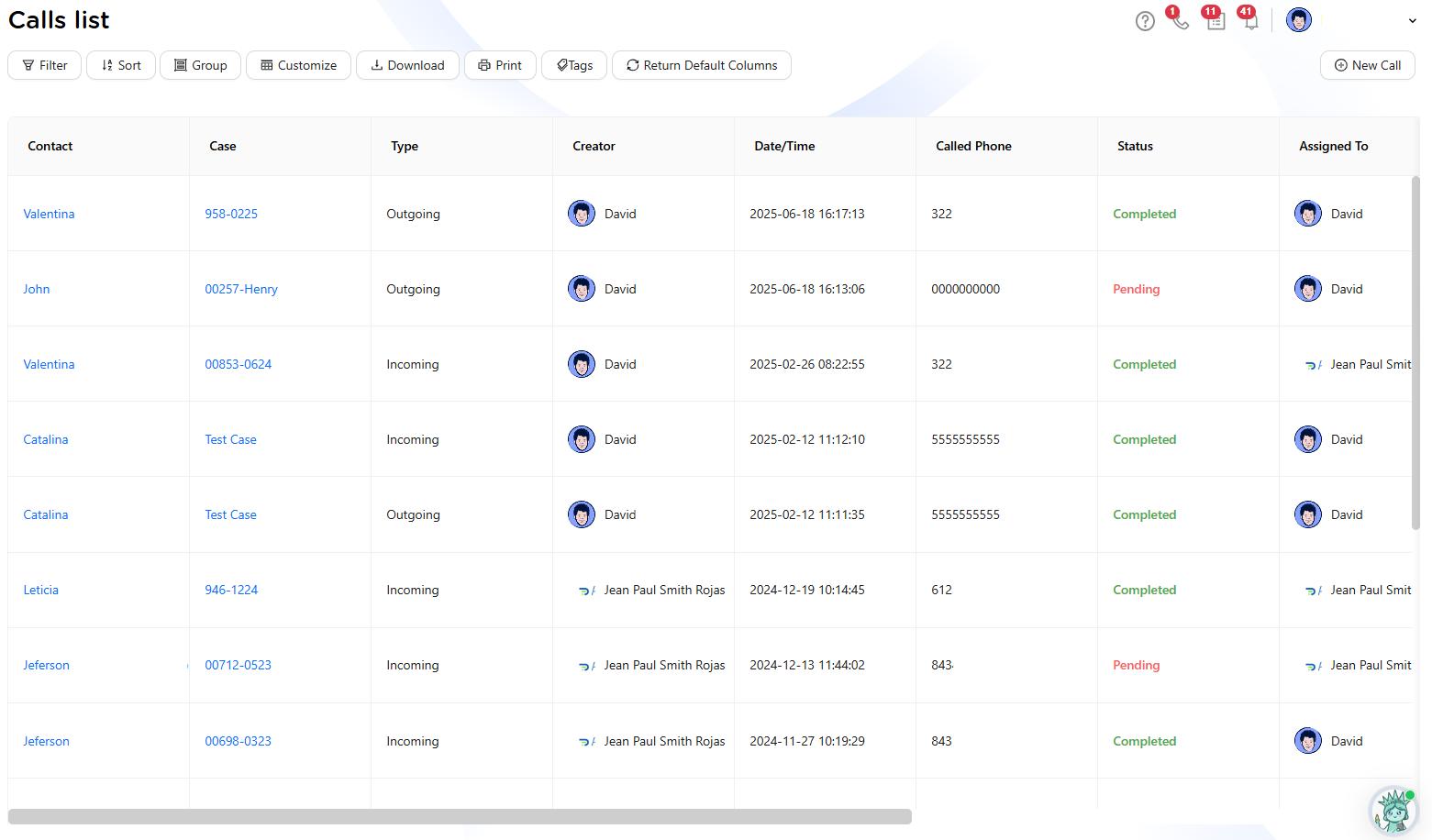
Call logs include:
- Incoming or outgoing call type
- Assigned user
- Phone number used (existing or new)
- Call duration
- Description of what was discussed
- Tags
Calls can be marked as completed or left pending, functioning similarly to call-specific tasks.
Automations and Integrations
Calls can be logged automatically through Zapier if integrated with a third-party calling system. At this time, calls cannot be placed directly from Prima.Law.
How Tasks, Notes, and Calls Work Together
These tools are most effective when used together:
- A call logs the interaction
- A note records decisions or context
- A task captures the required follow-up
This flow ensures nothing is lost and work remains visible even when multiple staff members are involved.
Lists, Filtering, and Reporting
Both Tasks and Calls have dedicated sidebar lists. These lists support:
- Filtering
- Grouping
- Sorting
- Custom views
- Exporting data
Notes do not have a global list and are accessed from their related contact or case.
Best Practices
- Use notes for decisions and context, not reminders
- Use tasks for actionable work with deadlines
- Log calls consistently, even if brief
- Link items to cases whenever applicable
- Write entries assuming someone else will read them later
Consistent logging ensures continuity, reduces confusion, and keeps your team aligned across every case.