
Adding & Tracking Priority Dates
This feature helps you quickly identify which clients are current for:
- Final Action Dates
- Dates for Filing
However, tracking only works if the priority date information is correctly added to the contact profile.
Where to View Priority Dates
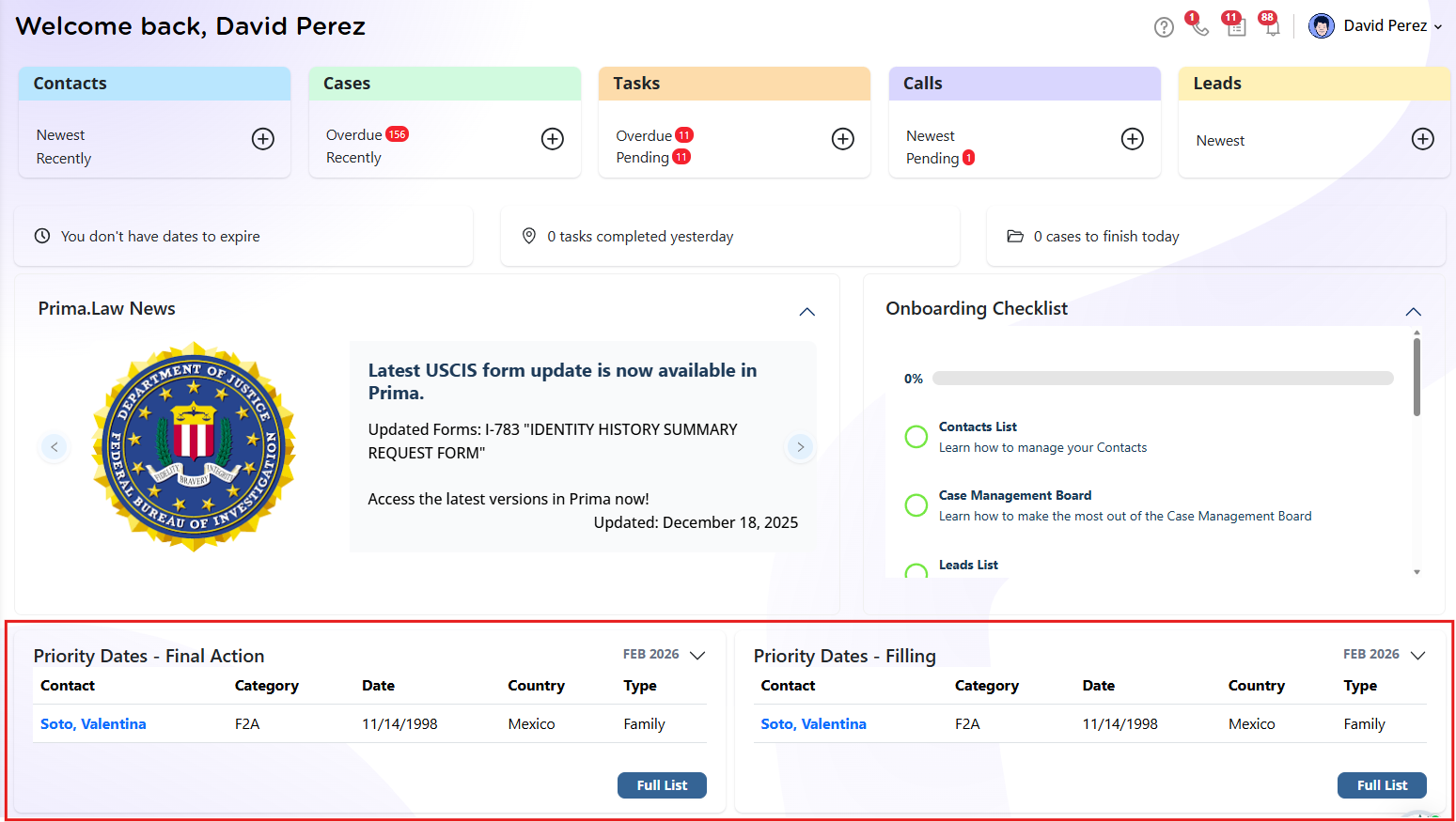
On your Homepage, scroll below:
- The Prima.Law News banner
- The Onboarding Checklist
You will see two sections:
- Priority Dates – Final Action
- Priority Dates – Filing
Each section displays a preview list of contacts whose priority dates fall within the applicable Visa Bulletin time frame.
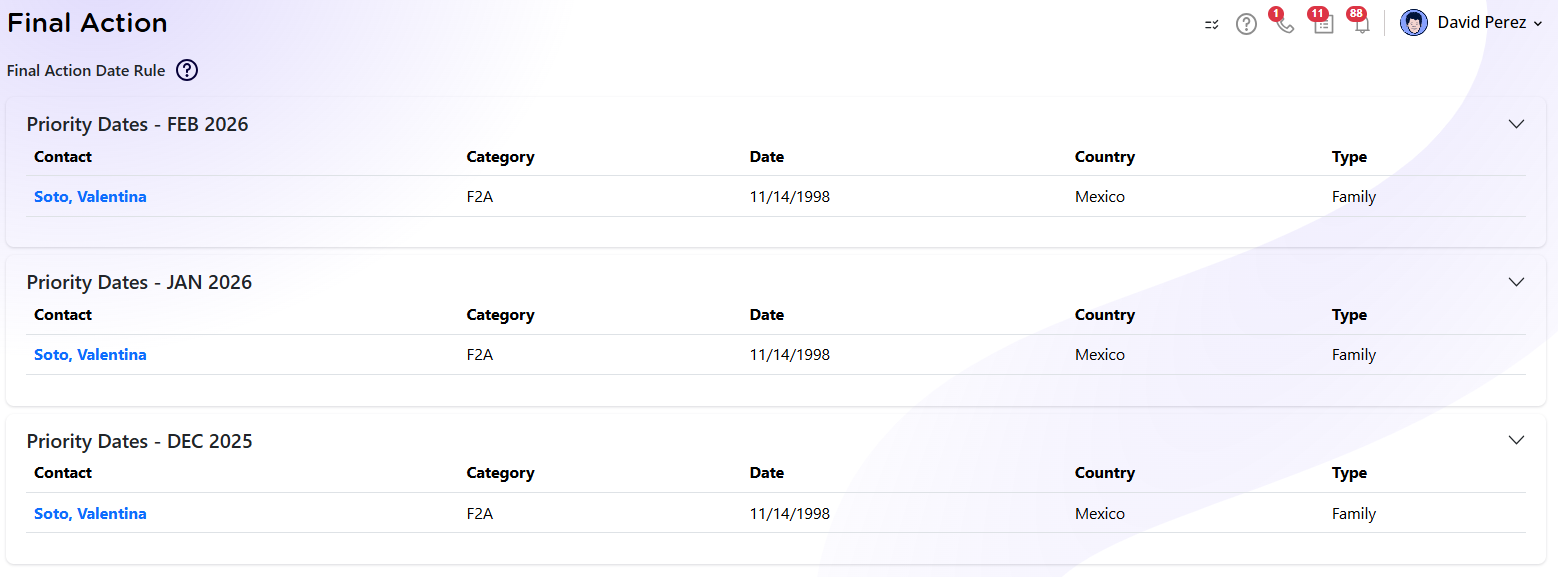
If you want to see the full list / report:
- Click on the "Full List" button under the section
- A complete list will open showing all qualifying contacts
If a contact appears in one of these sections, it means their priority date is current (or approaching current) under the most recent Visa Bulletin.
Important: You Must Add Priority Dates Per Contact
Priority dates do not populate automatically.
The system can only track and display them if you manually enter the required information inside each contact profile.
If the information is not added, the contact will not appear in the homepage tracking sections.
How to Add a Priority Date
Step 1: Open the Contact
- Go to the Contact Page.
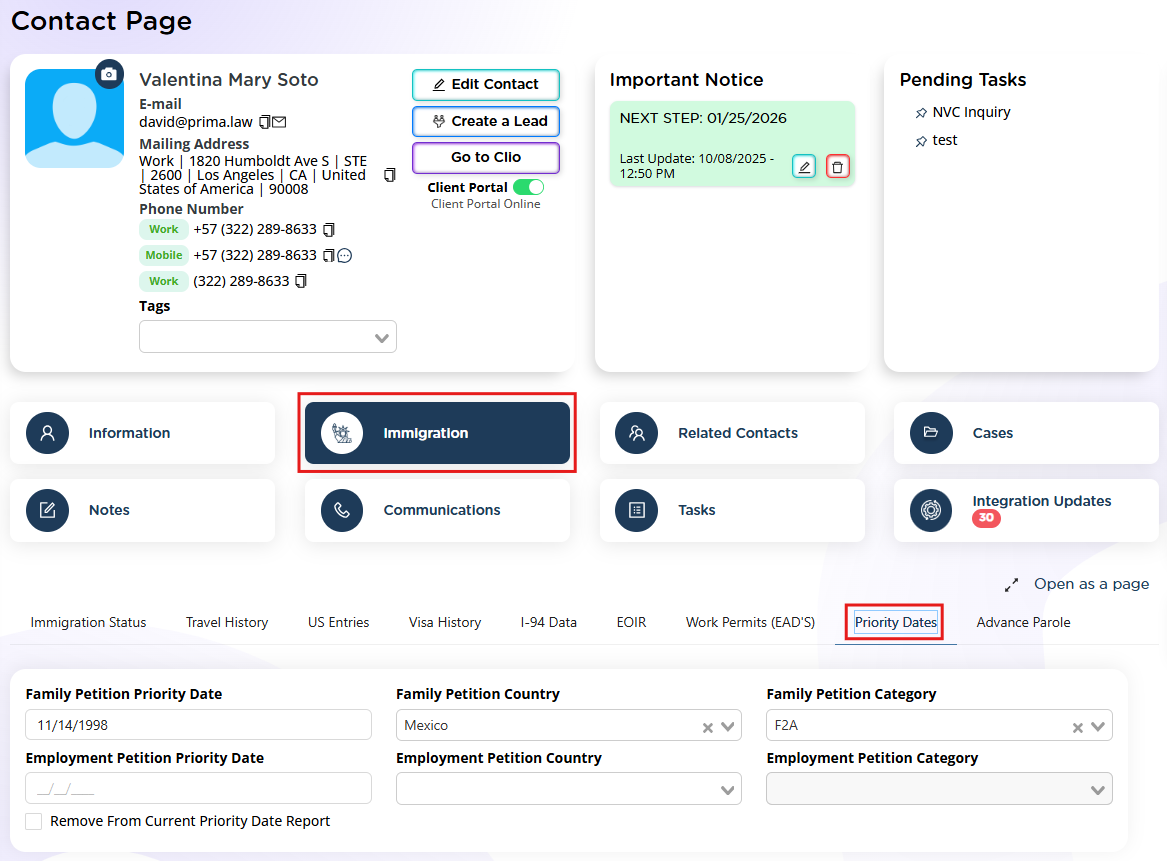
- Click the Immigration tab (next to the Information tab).
Step 2: Locate the Priority Dates Section
Within the Immigration tab, you will see multiple subsections.
Find Priority Dates — it is located between:
- Work Permits
- Advance Parole
Click into the Priority Dates subsection.
Step 3: Enter Priority Date Details
You must enter:
- Priority Date
- Country of Chargeability
- Category
Depending on the case type, you may enter:
Family-Based Petition Information
- Family petition category (e.g., F1, F2A, F2B, etc.)
- Country of chargeability
Employment-Based Petition Information
- Employment-based category (e.g., EB-1, EB-2, EB-3, etc.)
- Country of chargeability
Make sure:
- The category matches the petition type
- The country is accurate
- The priority date is entered correctly
Once saved, the system will use this data to compare against the Visa Bulletin.
How Updates Work
Prima.Law continuously updates priority date tracking based on the latest Visa Bulletin.
Whenever the Visa Bulletin changes:
- The system updates accordingly.
- Contacts whose dates become current (for Filing or Final Action) will appear automatically on your homepage.
There is no need to manually adjust the bulletin data — only the contact’s priority date details need to be accurate.
What It Means When a Contact Appears on the Homepage
If you see a contact listed under:
- Final Action → Their priority date is current for final action.
- Filing → Their priority date is current for filing.
This allows your team to:
- Identify eligible adjustment filings
- Monitor upcoming movement
- Proactively reach out to clients
- Prepare documentation in advance
Best Practice
Whenever you open a new case involving:
- A family-based petition
- An employment-based petition
Immediately:
- Go to the Contact
- Open the Immigration tab
- Add the priority date, category, and country
Doing this at the beginning ensures:
- The client appears in tracking automatically
- You don’t miss filing opportunities
- Your homepage remains an accurate dashboard of upcoming case movement
Summary
Priority date tracking in Prima.Law works automatically — but only if the information is entered correctly per contact.
To activate tracking:
- Go to Contact → Immigration tab → Priority Dates
- Enter the priority date, category, and country
- Save
From that point forward, Prima.Law monitors Visa Bulletin changes and displays qualifying contacts on your homepage under Filing and Final Action.
This keeps your firm proactive, organized, and ready to act as soon as priority dates move.