
SMS Messaging (Text Messaging with Twilio)
Prima.Law supports integrated SMS and MMS messaging using Twilio, allowing you to text clients while keeping all communication saved in the system.
What SMS messaging is used for
- quick client communication
- reminders and follow-ups
- receiving photos or documents
- keeping a full message history tied to the contact
All messages are stored in the contact profile.
What you need before using SMS
- A Twilio account
- A Twilio phone number (SMS/MMS enabled)
- Registered A2P 10DLC campaign (required for U.S. numbers)
Twilio is pay-as-you-go. Messaging costs are charged directly by Twilio.
Setting up Twilio (Admin only)
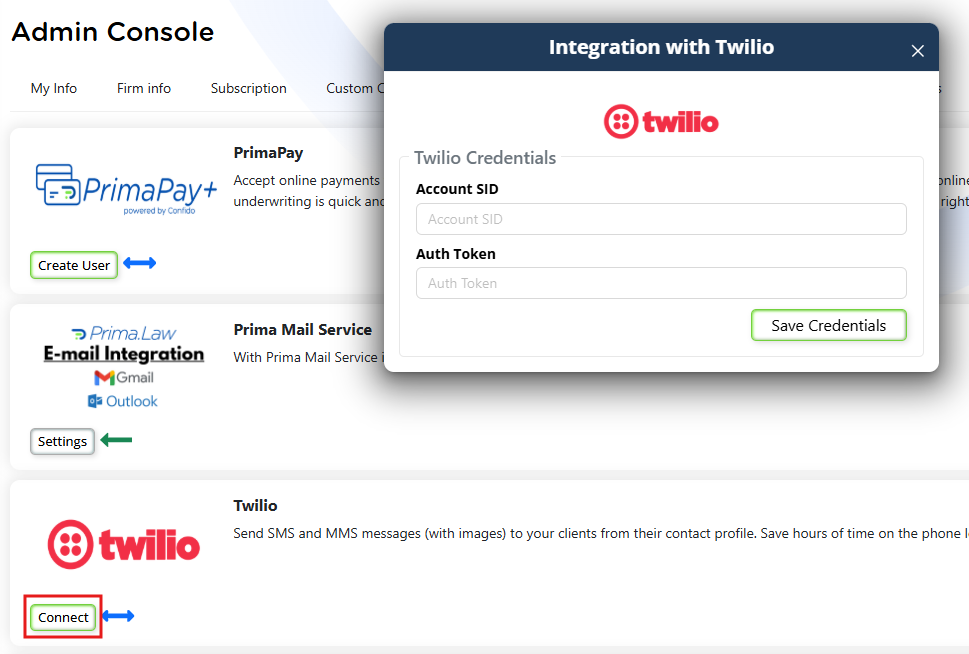
- Open the Administrator Panel.
- Go to Integrations → Twilio.
- Click Connect.
- Enter:
- Twilio Account SID
- Auth Token
- Define an email address for message notifications.
Sending text messages
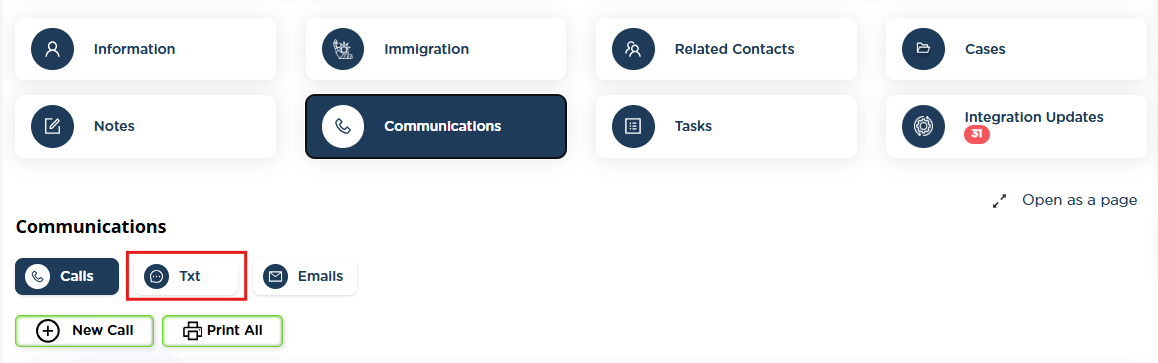
- Open the Contact Page.
- Go to Communications.
- Click the SMS icon.
- Select the correct phone number.
- Type your message.
- (Optional) Attach files or images.
- Click Send.
Receiving messages and files
- Incoming messages appear automatically in the conversation history.
- Images and files sent by clients are saved with the message.
- You can transfer files directly to a case’s Files tab.
Managing files from SMS
- Open the message containing the file.
- Choose Transfer to Case.
- Select the appropriate case.
- Save.
This keeps documents organized and linked to the correct matter.
Why use SMS inside Prima.Law
- No personal phone numbers required.
- All staff can view message history.
- Full record for compliance and dispute resolution.
- Centralized communication tied to the client record.