
AI Credits
To use this assistant, the platform uses a system called AI Credits. In this article, you will learn what they are, how they are consumed, and how your firm can easily manage them.
1. Key Concepts You Need to Know
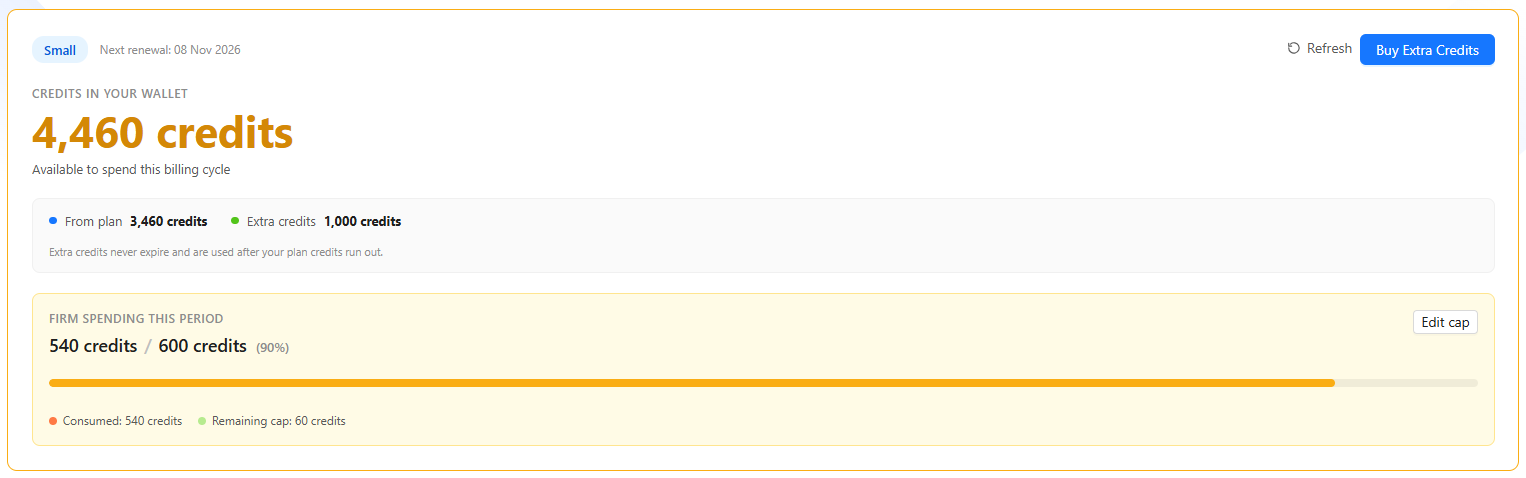
To understand how your balance works, keep these 5 terms in mind:
- Credit: The unit used to pay for each interaction with the assistant (similar to prepaid mobile balance).
- Credit Plan: The number of credits your firm receives each month for a fixed price. Plan credits renew every month and unused credits do not roll over.
- Extra Credits: Additional credits purchased separately when the plan falls short. They never expire and remain available even if the firm cancels its plan.
- Firm Cap: A monthly spending limit set by the administrator for the entire firm. No user can exceed this limit.
- User Quota: The number of credits assigned individually to each attorney. If an attorney runs out of quota, only that user is blocked.
2. How Are Credits Spent?
The assistant consumes credits through two main actions:
- Analyzing a document package for the first time: This is the primary process where the AI reads and processes the entire document. The more pages in the package, the more credits required.
- Asking a question: Asking follow-up questions on an already analyzed document consumes a very small number of credits.
Prima Law Billing Guarantees:
- Pay only for delivered answers: If a query fails or gets interrupted, no credits are deducted.
- No double charges: No analysis or processing is ever billed twice.
3. Available Plans and Usage Rules
Your firm can subscribe to a monthly plan directly within the platform:
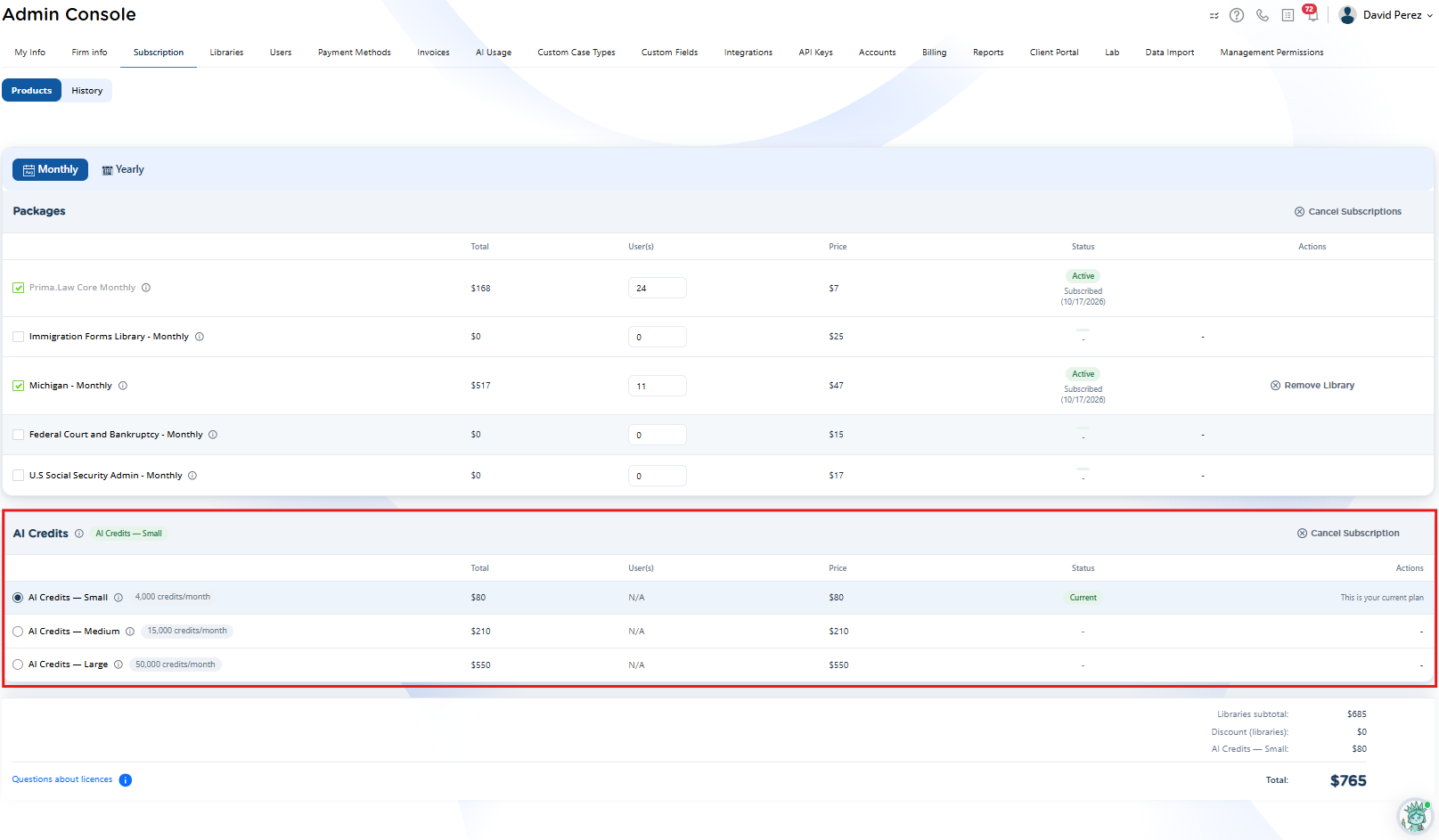
- Small: 4,000 credits / month ($80)
- Medium: 15,000 credits / month ($210)
- Large: 50,000 credits / month ($550)

Main Balance Rules:
- Consumption Order: When using the assistant, plan credits are spent first, followed by Extra Credits.
- Upgrading: You can upgrade your plan at any time with immediate effect.
- Downgrading: To switch to a smaller plan, you must cancel the current plan and subscribe to the new one at the end of the paid billing cycle.
4. Administrator Guide
If you are a firm administrator, you can manage AI Credits from the "Admin Console":
A. Subscribing and Setting Limits
- Go to "Admin Console" > "Subscription" > "AI Credits" section. Select a plan and confirm with "Update Subscription".
- Go to the "AI Usage" tab to choose how to distribute balance across your team:
- Firm Cap ("Edit cap"): The entire team shares a single global limit. (A number must be set to enable the assistant).
- User Quota ("Edit quotas"): Assign individual credit amounts to each attorney.
B. Monitoring and Management in "AI Usage"
From the "AI Usage" screen, you can:
- Check Balance: View available plan credits, extra credits, and the next renewal date.
- Buy Extra Credits: Use the "Buy Extra Credits" button to purchase additional credit blocks that never expire.
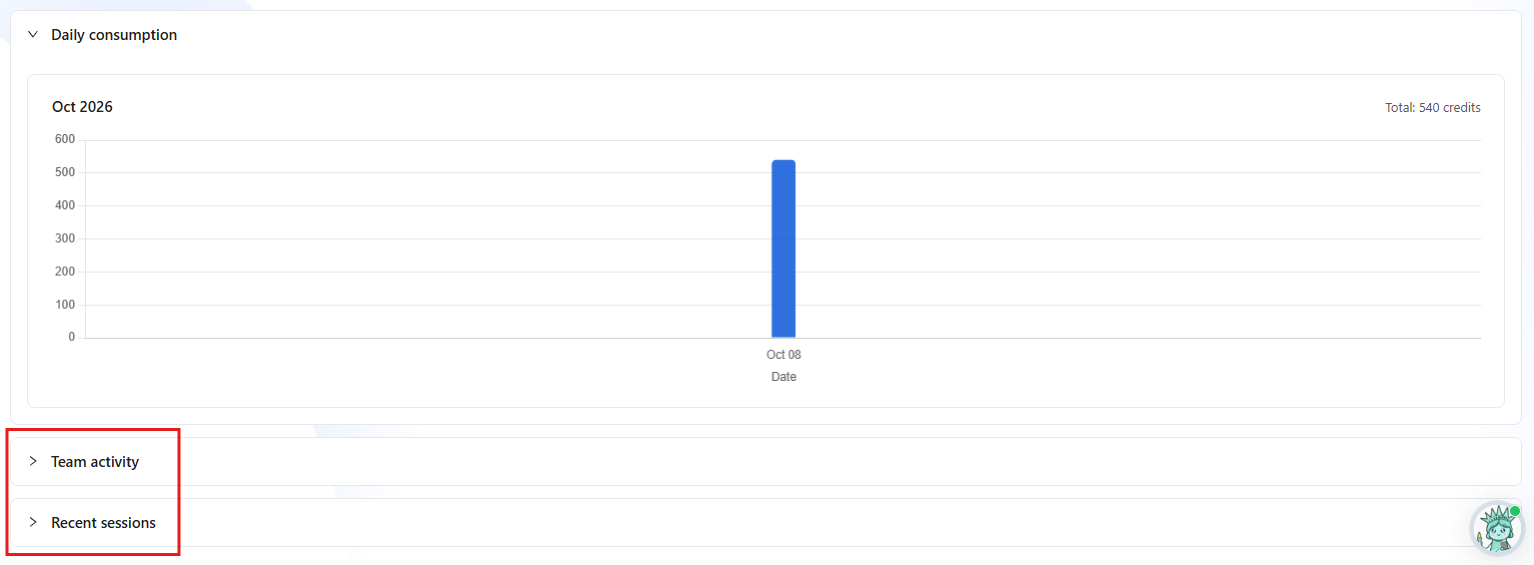
- Review Team Activity ("Team activity"): Check usage per attorney. The system automatically applies tags like "Top user" (highest consumer) or "Idle" (no activity in 2 weeks).
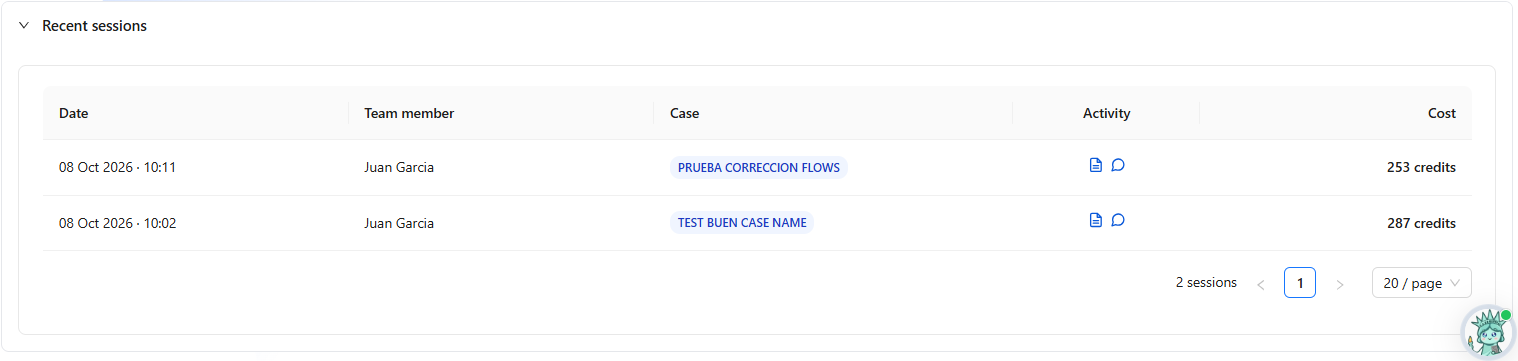
- Audit History ("Recent sessions"): View the log of all analysis and question sessions by user, case, date, and credit cost.
- Refresh Balance ("Refresh"): Syncs and corrects the balance by checking the most recent payment transaction.

5. Frequently Asked Questions (FAQ)
Do unused plan credits roll over?
No. Plan credits renew every month and unused ones are lost. However, purchased Extra Credits never expire.
What should I do if I see a limit reached message?
If you receive a prompt to request more credits, contact your firm's administrator. The administrator can increase your individual quota using "Edit quotas" or expand the overall firm cap via "Edit cap".
Can one attorney see another attorney's conversations?
No. Each attorney can only see their own conversations within a case. Administrators can only see overall credit consumption and technical session logs in "AI Usage".
6. Estimated Credit Usage Guide
To help you manage and plan your AI Credit usage, here is a breakdown of average credit consumption based on real platform usage data.
1. Document Upload & Analysis
- Average Cost per Page: ~0.79 to 0.89 credits per page.
- Content Type: Text-heavy, image-heavy, and scanned documents all cost roughly the same to process per page.
- Note on Smaller Files: Documents under 30 pages may slightly average around 0.80–0.92 credits per page due to rounding.
2. Asking Questions
The credit cost for asking questions depends on the overall length of the document:
- Up to 150 pages: ~32 credits per question (range: 16–100).
- 150 to 350 pages: ~48 credits per question (range: 33–109).
- 350 to 900 pages: 53–88 credits per question.
- Over 900 pages: ~150 credits per question (range: 77–195).
(On average, users ask 1 to 2 questions per document.)
Quick Estimations by Document Package
Document Size | Initial Upload & Analysis | Total Cost with 1 Question | Total Cost with 3 Questions |
200 Pages | ~157 credits | 195 – 240 credits | 270 – 410 credits |
800 Pages | ~626 credits | 700 – 760 credits | 860 – 1,020 credits |
Key Things to Keep in Mind
- Session Expiration: If you ask a question on a document after 30 minutes of inactivity, the system re-processes the document, which incurs the initial upload cost again.
- Required Credit Buffer: Before starting an analysis, the system checks if you have approximately 1.3x the estimated cost available in your balance as a safety margin. This is only a temporary balance check, not an extra fee.